'/%3e%3cpath%20id='cross_2'%20data-name='cross%202'%20class='cls-2'%20d='M20.612,30.43h0a5.361,5.361,0,1,0-10.723,0H0A33.709,33.709,0,0,1,30.569,0V9.75a5.361,5.361,0,1,1,0,10.723V30.43Z'%20transform='translate(67.193%200.007)%20rotate(90)'/%3e%3cpath%20id='cross_3'%20data-name='cross%203'%20class='cls-3'%20d='M20.612,30.43h0a5.361,5.361,0,1,0-10.723,0H0A33.709,33.709,0,0,1,30.569,0V9.75a5.361,5.361,0,1,1,0,10.723V30.43Z'%20transform='translate(67.186%2067.041)%20rotate(180)'/%3e%3cpath%20id='cross_4'%20data-name='cross%204'%20class='cls-4'%20d='M20.6,30.5h0a5.361,5.361,0,1,0-10.723,0H0A33.71,33.71,0,0,1,30.56,0V9.818a5.361,5.361,0,1,1,0,10.723V30.5Z'%20transform='translate(0%2067.041)%20rotate(-90)'/%3e%3c/svg%3e)
Knowledge Indexing
Check whether the documents users have uploaded are ready to be used in AI search. The search data created here is used for RAG, where the AI locates relevant documents to answer questions.
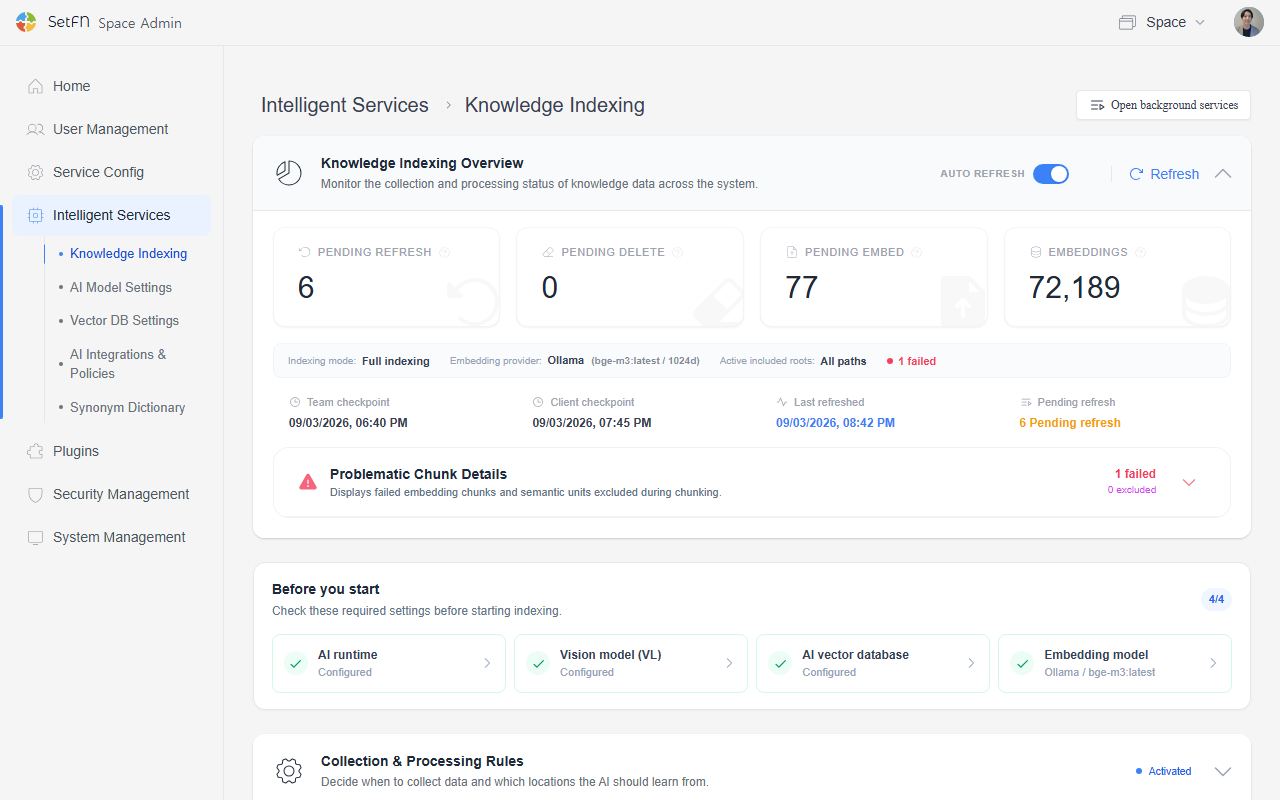
Indexing Summary
Check the current indexing status at a glance.
| Item | Description |
|---|---|
| Pending update | Newly created or modified files waiting to be reflected in AI search |
| Pending deletion | Search data for deleted files waiting to be cleaned up |
| Pending embedding | Documents whose text has been read and are waiting to be turned into AI search data |
| Embedding count | The total number of embeddings completed so far |
| Indexing mode | The scope of files targeted for AI search data creation (e.g., full indexing) |
| Embedding provider | The AI embedding model in use (e.g., Ollama bge-m3:latest / 1024d) |
| Included execution root | The path targeted for indexing |
| Team checkpoint | The last time team folders were checked |
| Client checkpoint | The last time personal folders were checked |
| Last refresh | The last time the status was refreshed |
You can leave Auto Refresh on, or manually refresh the status using the Refresh button.
Check Settings Before You Start
Before starting indexing, review the required settings below. Each link takes you to the relevant setting.
| Required Setting | What to Check | Go to Setting |
|---|---|---|
| AI runtime | Select an AI runtime such as Ollama or LM Studio for indexing, and confirm that it is connected. | Configure AI runtime |
| Vision model (VL) | Select a vision model that reads the contents of PDFs and images. | Configure vision model |
| AI vector DB | Select vector storage such as Local (SQLite), Milvus, or Qdrant, and configure its connection. | Configure AI vector DB |
| Embedding model | Select a model that converts documents into search vectors. (e.g., bge-m3) | Configure embedding model |
Selecting a vision or embedding model does not install it automatically. Download each required model to the configured AI runtime before starting indexing.
Collection and Processing Rules
Define when to create search data and which folders' documents are used for AI search.
Enable Knowledge Indexing
Turns the entire knowledge indexing feature on or off.
Indexing Mode Settings
| Item | Description | Default |
|---|---|---|
| Indexing mode | Select the indexing scope and method | Full indexing |
| Wait time (minutes) | Time to wait after detecting a file change before starting indexing | 20 |
| Maximum concurrent jobs | Number of indexing jobs that can run at the same time | 1 |
| Allow worker execution | If turned off, changed files continue to be detected, but no AI search data is created. | Enabled |
| Auto-pause under high load | Pauses indexing temporarily when server usage is high, and resumes once the server stabilizes. | Enabled |
| Boost mode | Starts indexing within 5 seconds of a file change and immediately processes any backlog. Enable this when you want changes reflected quickly. | Disabled |
| Allowed time window | Specifies the time window during which indexing is allowed. If left blank, indexing can run at any time. (e.g., 01:00-06:00) | No restriction |
Included Roots
Specify the folder paths to index. If left blank, the entire path is targeted.
Example:
/@team/docs
/@client/projects
AI Embedding Model Settings
Select the AI model used to convert documents into search data.
| Provider | Description |
|---|---|
| Ollama | Uses Ollama models installed locally. (e.g., bge-m3:latest) |
| ONNX Local CPU | Uses a locally run ONNX model based on CPU. |
| ONNX Local GPU | Uses a locally run ONNX model with GPU acceleration. |
| Remote API | Uses an embedding model via an external API. |
Providers with no installed model are shown as No models available.
| Item | Description |
|---|---|
| Dimension size | The size of the search data used by the AI model. Set automatically based on the selected model. (e.g., 1024) |
| PDF/image extraction strategy | Select the method used to read text from PDFs and images. VL first, fall back to OCR means the vision-understanding AI is used first, and character recognition (OCR) is used only if that fails. |
PDF/Image Include Patterns
Enter file extensions or path rules for the PDFs and images from which text should be read.
Example:
*.pdf, *.png, image/**/*
PDF/Image Exclude Patterns
Enter file extensions or path rules for PDFs and images that should not be processed. If left blank, all files matched by the include patterns above are processed.
Example:
thumbs.db, *.gif, cache/**
Progress Status by Storage Space
Check how much material in each team or personal storage space is waiting to be delivered to the AI.
You can search by space (team/client) and user, and sort by the number of pending updates.
| Item | Description |
|---|---|
| Space | Team space or personal (client) space |
| User | The relevant user, for personal space |
| Pending update | Newly created or modified files waiting to be reflected in AI search |
| Pending deletion | Search data for deleted files waiting to be cleaned up |
| Pending embedding | Documents whose text has been read and are waiting to be turned into AI search data |
| Embedding count | The total number of embeddings completed |
AI Training Data Status
Check how much AI search data has been generated per model. This is not a feature for training AI models from scratch using the original documents.
| Item | Description |
|---|---|
| Provider | The model provider used for embedding (e.g., ollama) |
| Model | The embedding model used (e.g., bge-m3:latest) |
| Count | The total number of embeddings generated by that model |
You can sort by count to compare the scale of search data by model.