'/%3e%3cpath%20id='cross_2'%20data-name='cross%202'%20class='cls-2'%20d='M20.612,30.43h0a5.361,5.361,0,1,0-10.723,0H0A33.709,33.709,0,0,1,30.569,0V9.75a5.361,5.361,0,1,1,0,10.723V30.43Z'%20transform='translate(67.193%200.007)%20rotate(90)'/%3e%3cpath%20id='cross_3'%20data-name='cross%203'%20class='cls-3'%20d='M20.612,30.43h0a5.361,5.361,0,1,0-10.723,0H0A33.709,33.709,0,0,1,30.569,0V9.75a5.361,5.361,0,1,1,0,10.723V30.43Z'%20transform='translate(67.186%2067.041)%20rotate(180)'/%3e%3cpath%20id='cross_4'%20data-name='cross%204'%20class='cls-4'%20d='M20.6,30.5h0a5.361,5.361,0,1,0-10.723,0H0A33.71,33.71,0,0,1,30.56,0V9.818a5.361,5.361,0,1,1,0,10.723V30.5Z'%20transform='translate(0%2067.041)%20rotate(-90)'/%3e%3c/svg%3e)
Training
Run fine-tuning by specifying a preprocessed dataset, a base model, and a training method (STAGE).
1. Selecting a Training Dataset
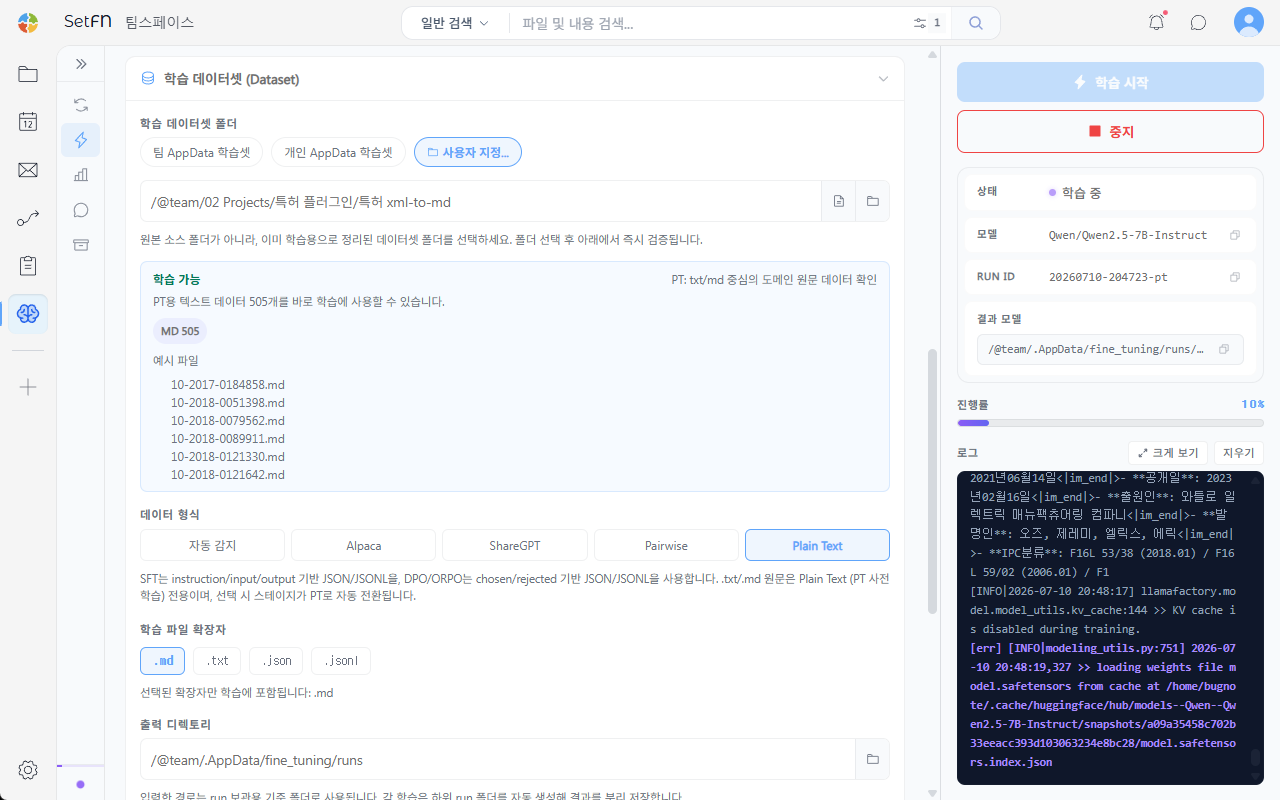
Select a dataset folder that has already been prepared for training, not the original source folder. Choose among Team AppData Training Set, Personal AppData Training Set, or enter a Custom path directly. Once you select a folder, it's immediately validated below and shows the number of files available for training.
Data Format
Choose from Auto-detect, Alpaca, ShareGPT, Pairwise, and Plain Text.
- SFT uses JSON/JSONL based on instruction/input/output.
- DPO/ORPO uses JSON/JSONL based on chosen/rejected.
- .txt/.md raw text is exclusive to Plain Text (PT pre-training); selecting it automatically switches the stage to PT.
Training File Extensions and Output Directory
Select the file extensions to include in training (.md, .txt, .json, .jsonl), and specify the output directory where training results will be saved. Results are automatically created in subfolders by run number, keeping each run's results separate.
2. Selecting a Model
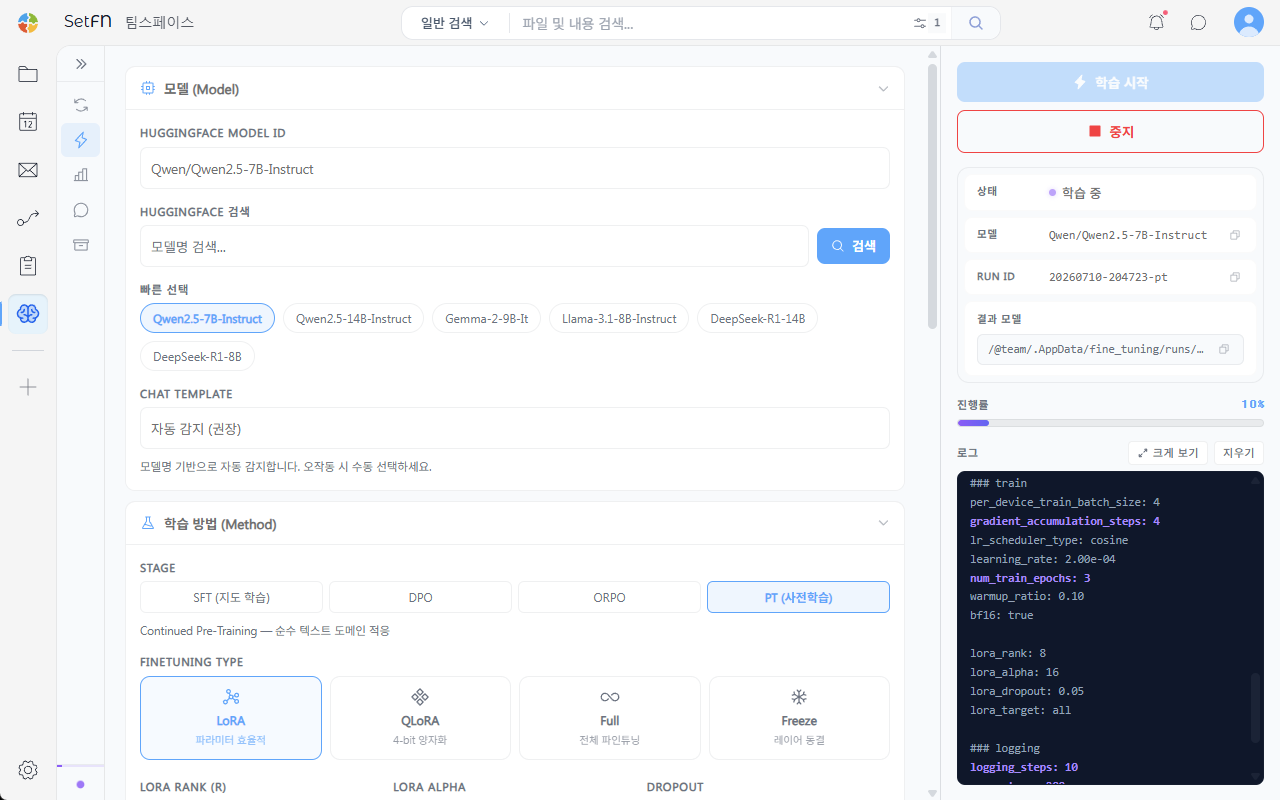
Enter a HUGGINGFACE MODEL ID directly, or search for a model using the search bar. You can also quickly choose from Qwen2.5-7B-Instruct, Qwen2.5-14B-Instruct, Gemma-2-9B-It, Llama-3.1-8B-Instruct, DeepSeek-R1-14B, and DeepSeek-R1-8B.
By default, CHAT TEMPLATE uses automatic detection based on the model name (recommended). Select it manually only if it isn't working correctly.
3. Selecting a Training Method (STAGE) and Fine-tuning Approach
| STAGE | Description |
|---|---|
| SFT (Supervised Fine-Tuning) | Teaches a specific task using instruction/input/output data |
| DPO | Trains preferences using chosen/rejected data |
| ORPO | A preference-based alignment method similar to DPO |
| PT (Pre-Training) | Continued Pre-Training. Trains domain knowledge using plain text |
For FINETUNING TYPE, choose from LoRA, QLoRA (4-bit quantization), Full (full fine-tuning), and Freeze (layer freezing). You can also adjust detailed hyperparameters such as LoRA RANK, LORA ALPHA, and DROPOUT.
4. Starting Training
Click the Start Training button to begin training. In the right panel, you can monitor status, model, RUN ID, result model path, and progress in real time, along with output logs. To stop training, click the Stop button.
Good to Know
- If the data format doesn't match the target stage, training may not start.
- You can't change the settings of the same run while it's training.