'/%3e%3cpath%20id='cross_2'%20data-name='cross%202'%20class='cls-2'%20d='M20.612,30.43h0a5.361,5.361,0,1,0-10.723,0H0A33.709,33.709,0,0,1,30.569,0V9.75a5.361,5.361,0,1,1,0,10.723V30.43Z'%20transform='translate(67.193%200.007)%20rotate(90)'/%3e%3cpath%20id='cross_3'%20data-name='cross%203'%20class='cls-3'%20d='M20.612,30.43h0a5.361,5.361,0,1,0-10.723,0H0A33.709,33.709,0,0,1,30.569,0V9.75a5.361,5.361,0,1,1,0,10.723V30.43Z'%20transform='translate(67.186%2067.041)%20rotate(180)'/%3e%3cpath%20id='cross_4'%20data-name='cross%204'%20class='cls-4'%20d='M20.6,30.5h0a5.361,5.361,0,1,0-10.723,0H0A33.71,33.71,0,0,1,30.56,0V9.818a5.361,5.361,0,1,1,0,10.723V30.5Z'%20transform='translate(0%2067.041)%20rotate(-90)'/%3e%3c/svg%3e)
Initial Setup
Regardless of your operating system or installation method, the initial setup screen is where you specify the administrator account, service port, and data storage path.
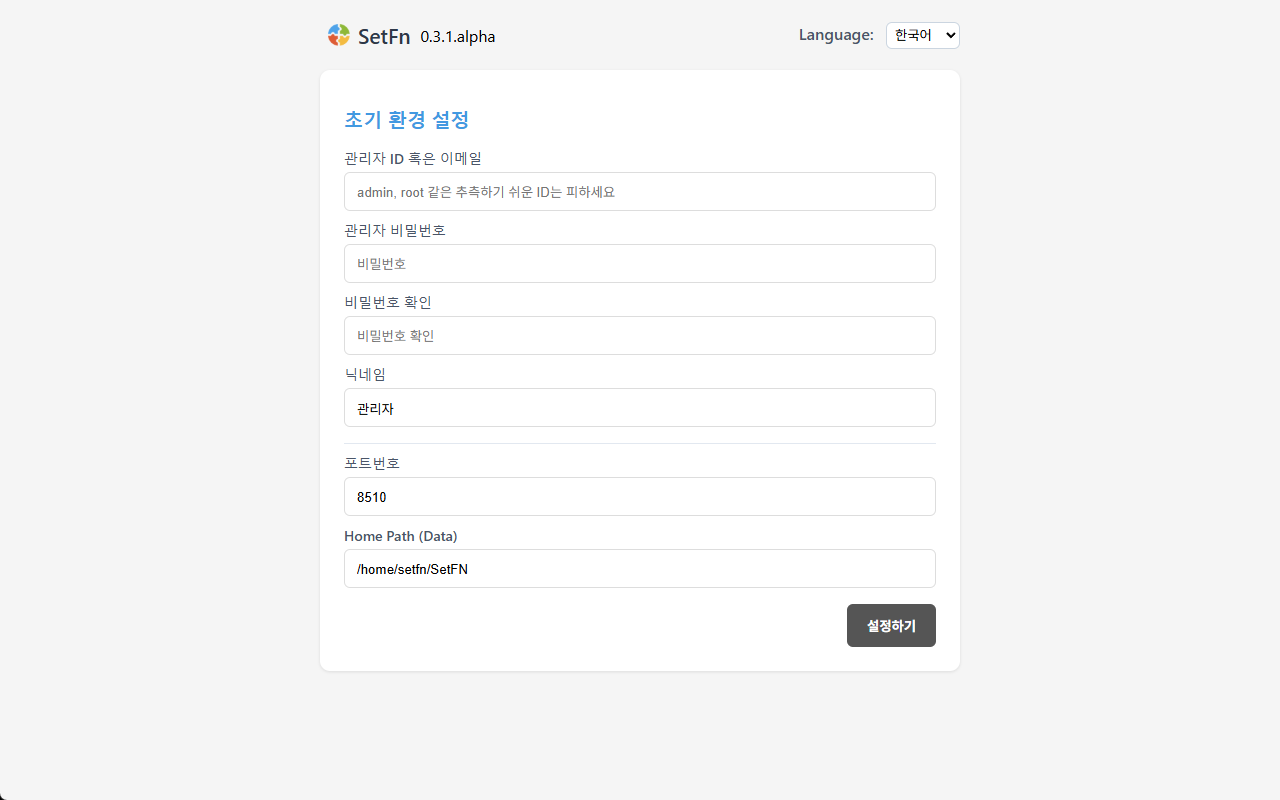
Configuring the administrator account
Enter the administrator account information for the person who will operate this space.
| Field | Description | Can it be changed later? |
|---|---|---|
| Admin ID | A unique alphanumeric ID used for login | No |
| Password | The administrator account password | Yes |
| Nickname | The name displayed in the service (default: Administrator) | Yes |
Avoid easily guessable administrator IDs such as admin, administrator, or root. It's a good idea to combine your organization or service name with a word only you know, to create an ID that isn't used on other services.
Making the administrator ID hard to guess alone does not protect the account. Also set a password that is sufficiently long and not reused from other services.
Setting the service port
Specify the TCP port that the SpaceBuilder service will use. Unless you have a specific reason not to, use the default value 8510.
Only change it to an available port in the 3000–65535 range if 8510 is already in use by another program. No particular port number is otherwise recommended.
To connect from other devices, the inbound connection for the selected port must be allowed in your server firewall. If you're connecting through a router, apply the same port setting on the router as well.
Setting the data storage path
The Home Path is where service data such as documents and attachments is stored. Choose a path that meets the following conditions.
- A path the user running the service has read/write permission to
- Enough free space to store data that grows over time as you operate the service
- A path that can be backed up regularly
Completing setup and first login
Clicking Set Up saves the configuration and starts the SpaceBuilder service.
- Default port:
http://localhost:8510 - If you changed the port:
http://localhost:<configured port> - If connecting from another device:
http://<server IP>:<configured port>
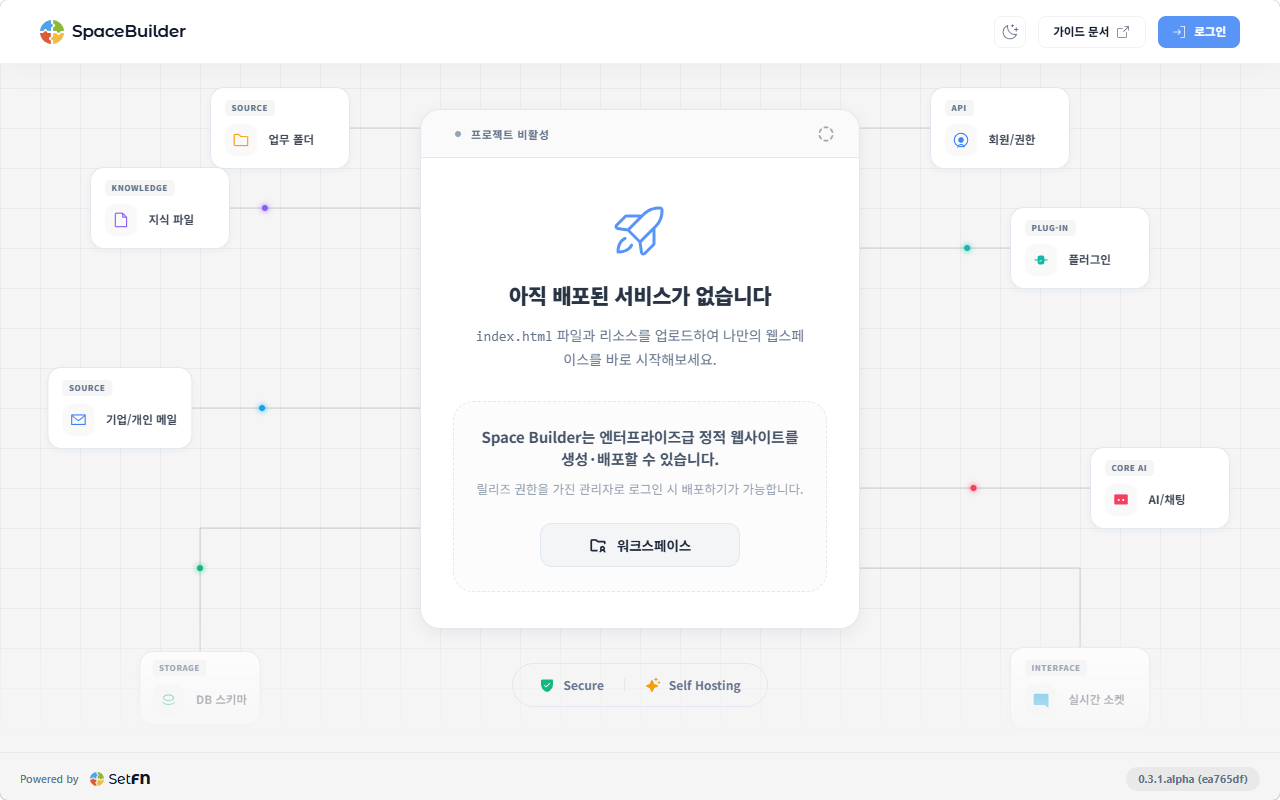
Click the login button in the top right, or Workspace in the center of the screen, and log in with the administrator account you just created.
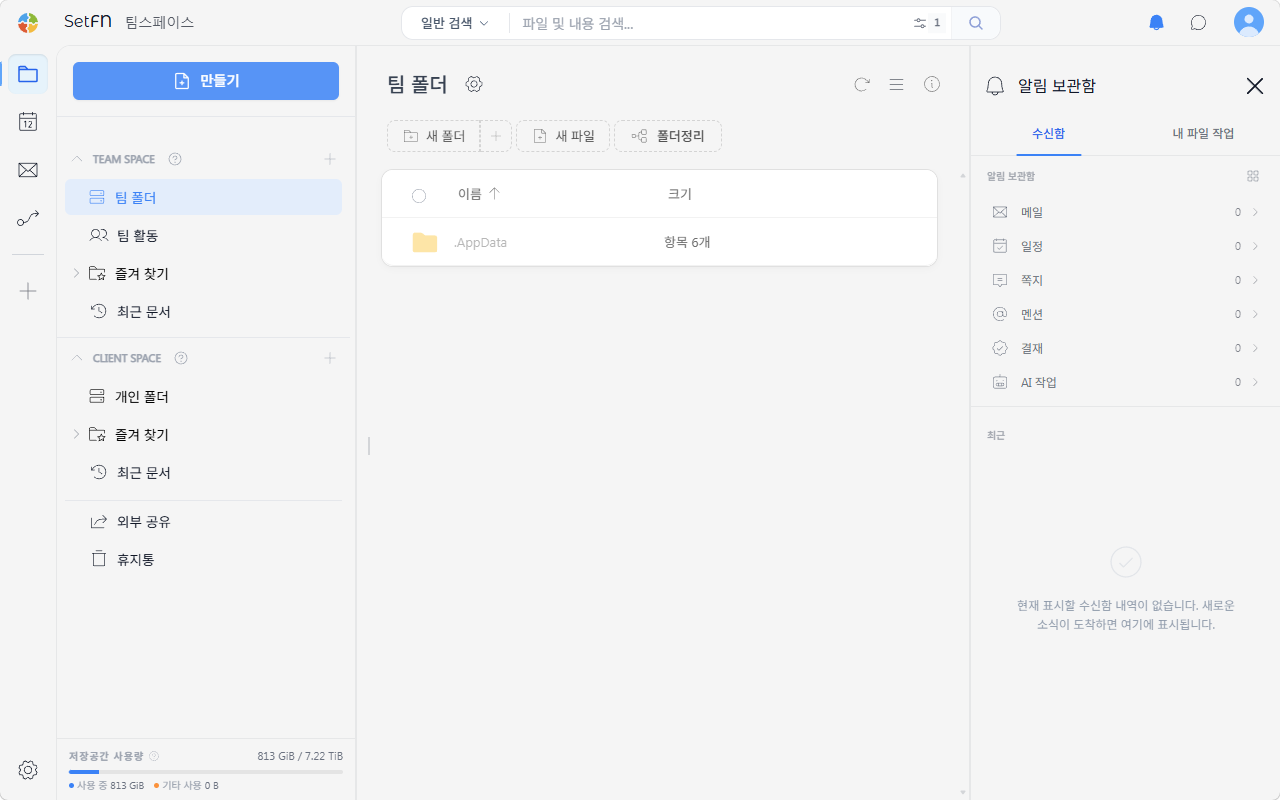
You've completed your first login. Next, activate your license.