'/%3e%3cpath%20id='cross_2'%20data-name='cross%202'%20class='cls-2'%20d='M20.612,30.43h0a5.361,5.361,0,1,0-10.723,0H0A33.709,33.709,0,0,1,30.569,0V9.75a5.361,5.361,0,1,1,0,10.723V30.43Z'%20transform='translate(67.193%200.007)%20rotate(90)'/%3e%3cpath%20id='cross_3'%20data-name='cross%203'%20class='cls-3'%20d='M20.612,30.43h0a5.361,5.361,0,1,0-10.723,0H0A33.709,33.709,0,0,1,30.569,0V9.75a5.361,5.361,0,1,1,0,10.723V30.43Z'%20transform='translate(67.186%2067.041)%20rotate(180)'/%3e%3cpath%20id='cross_4'%20data-name='cross%204'%20class='cls-4'%20d='M20.6,30.5h0a5.361,5.361,0,1,0-10.723,0H0A33.71,33.71,0,0,1,30.56,0V9.818a5.361,5.361,0,1,1,0,10.723V30.5Z'%20transform='translate(0%2067.041)%20rotate(-90)'/%3e%3c/svg%3e)
Managing Plugins
Plugins are extensions that add functionality to the SetFN server. Admins can use the plugin screen to check the status of installed extension plugins and enable or disable the ones they need.
Plugin Screen Layout
Select Plugin from the left menu on the admin page to view plugin-related menus.
| Menu | Description |
|---|---|
Extension Plugins | View extension plugins installed on SetFN and change their enabled status. |
External Libraries | Check the status of external libraries required for document conversion, OCR, and media processing. |
Extension Plugins
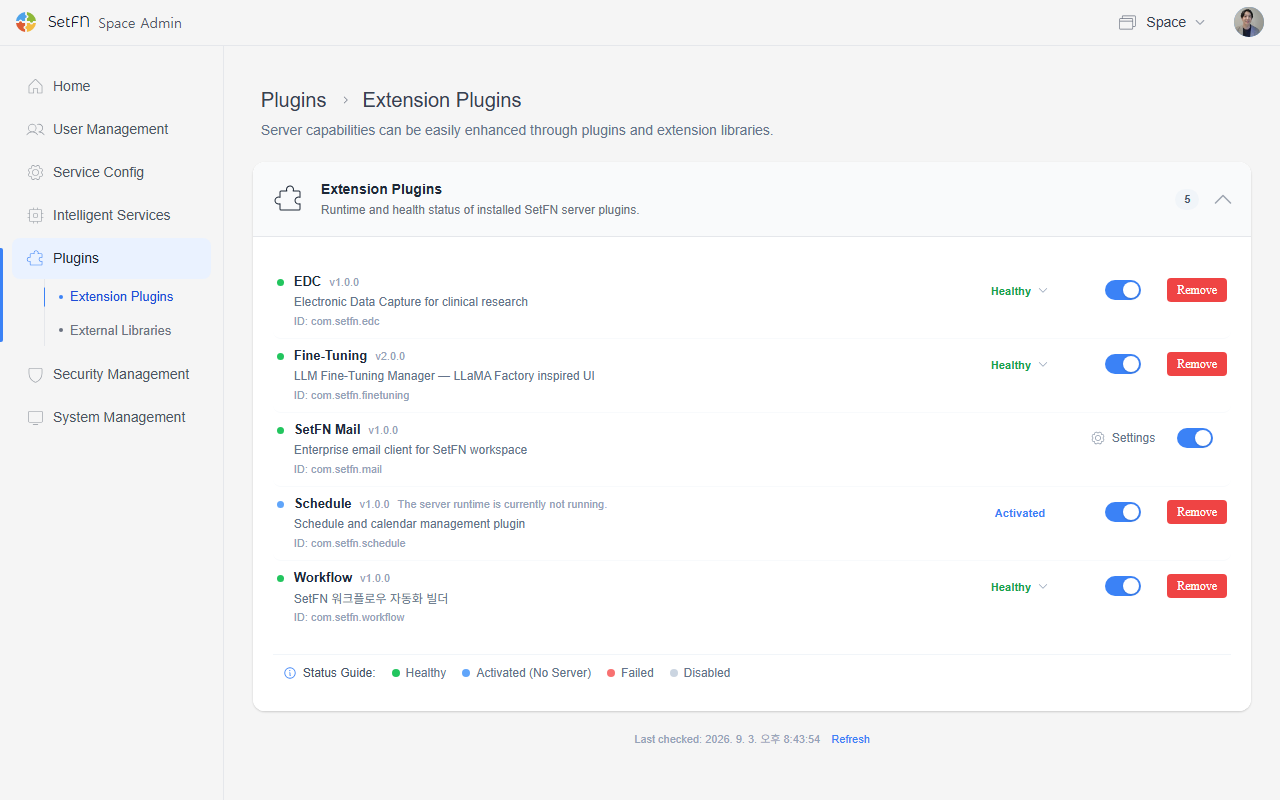
Extension plugins are server-side plugins that provide additional functionality for SetFN. The screen shows each plugin's name, version, description, ID, status, and an enable toggle.
Example plugins include the following.
| Plugin | Description |
|---|---|
Workflow | The SetFN workflow automation builder. |
SetFN Mail | An email client for the SetFN workspace. |
EDC | Electronic data capture functionality for clinical research. |
Fine-Tuning | A feature for managing LLM fine-tuning. |
Schedule | A plugin for schedule and calendar management. |
External Libraries
External libraries are server-side tools that support features such as document conversion, OCR, and media processing in SetFN. This screen shows their installation status and version.
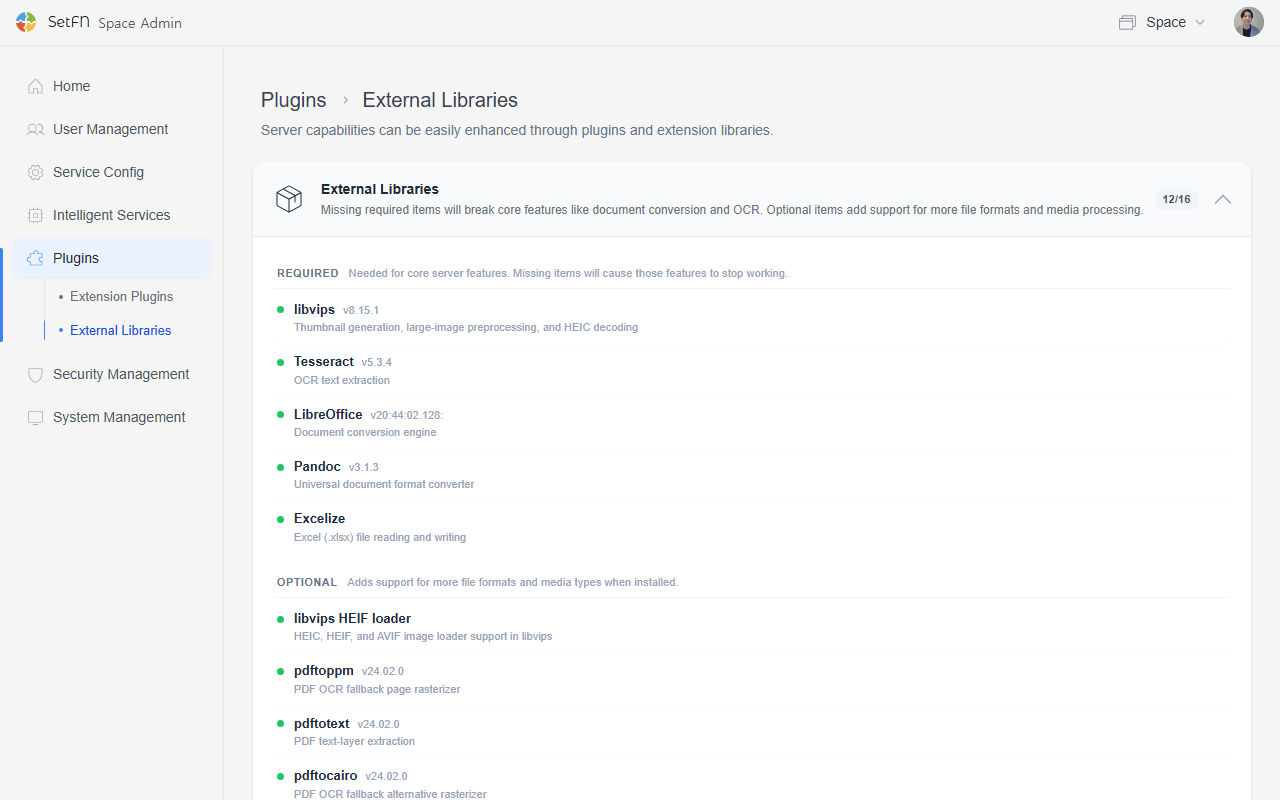
External libraries are not something you turn on or off directly from the admin screen; this screen is for status checking only. If a required library is missing, core features such as document conversion or OCR may not work correctly.
Good to Know
- Extension plugins can be enabled or disabled with a toggle switch.
- External libraries are a status-check-only screen.
- Removing a plugin or changing its enabled status can affect other user-facing features.
- For plugin-specific detailed settings, check that plugin's settings icon or its dedicated documentation.