'/%3e%3cpath%20id='cross_2'%20data-name='cross%202'%20class='cls-2'%20d='M20.612,30.43h0a5.361,5.361,0,1,0-10.723,0H0A33.709,33.709,0,0,1,30.569,0V9.75a5.361,5.361,0,1,1,0,10.723V30.43Z'%20transform='translate(67.193%200.007)%20rotate(90)'/%3e%3cpath%20id='cross_3'%20data-name='cross%203'%20class='cls-3'%20d='M20.612,30.43h0a5.361,5.361,0,1,0-10.723,0H0A33.709,33.709,0,0,1,30.569,0V9.75a5.361,5.361,0,1,1,0,10.723V30.43Z'%20transform='translate(67.186%2067.041)%20rotate(180)'/%3e%3cpath%20id='cross_4'%20data-name='cross%204'%20class='cls-4'%20d='M20.6,30.5h0a5.361,5.361,0,1,0-10.723,0H0A33.71,33.71,0,0,1,30.56,0V9.818a5.361,5.361,0,1,1,0,10.723V30.5Z'%20transform='translate(0%2067.041)%20rotate(-90)'/%3e%3c/svg%3e)
Workflow Introduction
The Workflow plugin runs recurring business automation within SetFN without writing code (no-code). You can chain together actions like AI summarization, file saving, and sending notifications to run in sequence when a file is added or an email arrives, letting you automate internal business processes without an external automation service like Zapier.
Workflow Screen Layout
The Workflow plugin's left menu is divided into My Workflows, Team Workflows, and Execution History.
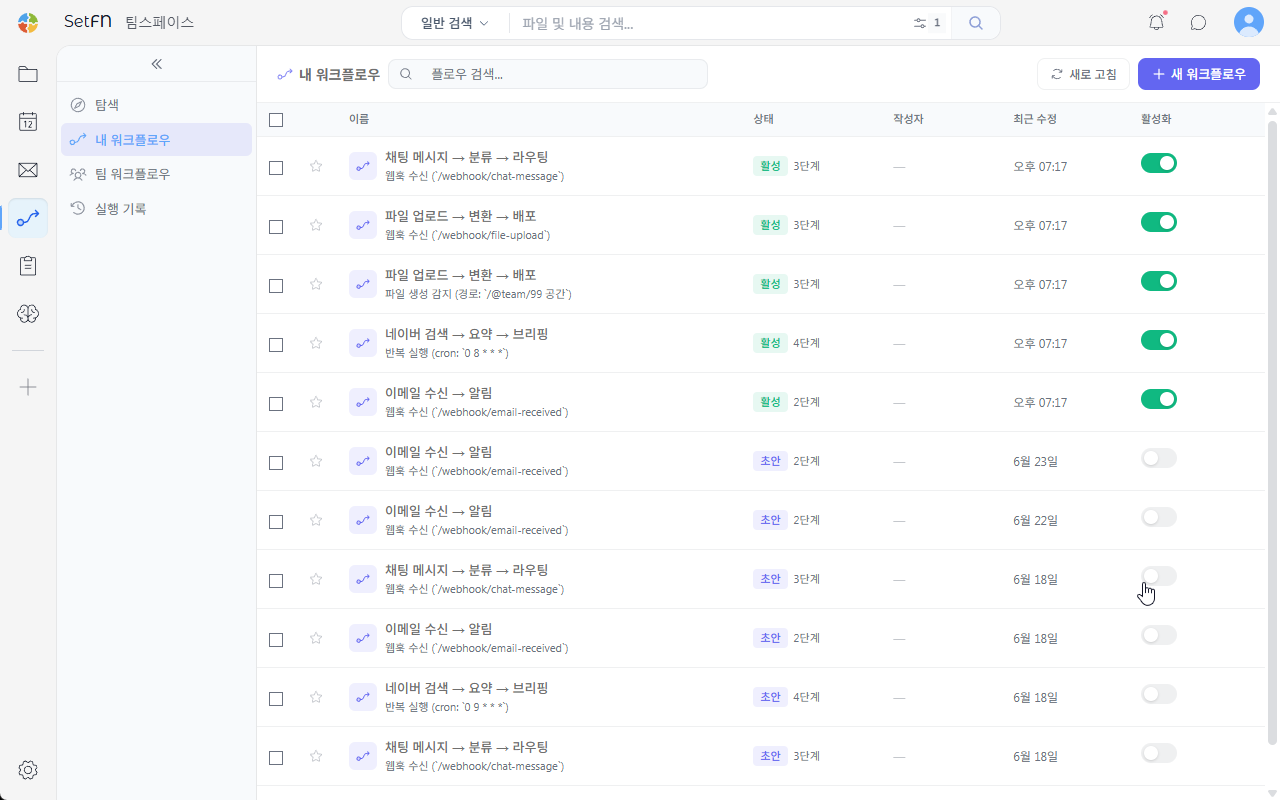
| Screen | Description |
|---|---|
My Workflows | View and manage workflows you've created personally. |
Team Workflows | View and manage workflows shared and used by your team. |
Execution History | Check when a workflow ran and with what result. |
Common Automation Examples You Can Build with Workflow
Manual Execution
Users can run a workflow directly whenever needed. This suits tasks the user needs to kick off at a time of their choosing, such as generating recurring reports, organizing search results, or converting files.
Scheduled Execution
You can run a workflow at a set time or on a recurring interval. This can be used for tasks like checking your inbox every morning, or collecting search results weekly to compile a report.
Webhook Execution
You can run a workflow when an external system sends a request. This is used to connect events from external services into SetFN's file saving, notification, and AI processing flows.
File Automation
You can run a workflow when a file is created or modified in a specific folder. For example, when a new PDF is uploaded, AI can summarize its content and save the result to a file such as output.md.
Email Automation
You can run a workflow triggered by an incoming email. For example, when a quote request email arrives, you can summarize its content and send a DM or notification to the person in charge.
Notification Automation
You can send the results of a workflow as a notification within SetFN. This lets users know right away when an important file has been created or an email matching certain conditions has arrived.
AI Automation
You can use AI prompt blocks to summarize or classify files, emails, and search results. This is useful for automatically processing material that would otherwise need to be read and organized repeatedly.
Search and Collection Automation
You can pull in external information using blocks such as Naver Search, Wiki Search, KIPRIS Search, and URL Collection. The information you gather can then be connected to subsequent steps such as an AI prompt, writing a file, or sending a notification.
Workflow Status
The workflow list lets you check each workflow's status and whether it's enabled.
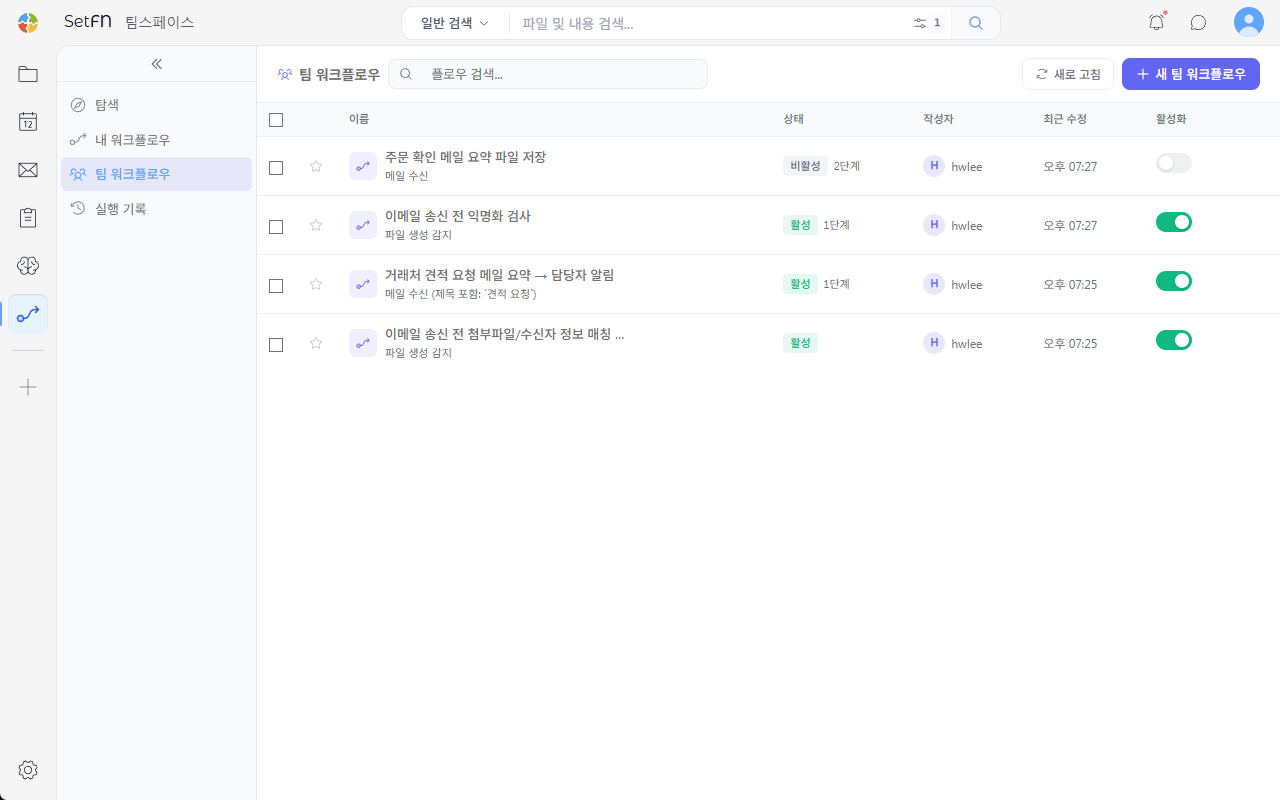
| Status | Description |
|---|---|
Draft | A workflow that has not yet been activated. |
Active | A workflow that runs when its conditions are met. |
Inactive | A workflow that is saved but does not run. |
Basic Usage Flow
- Create a new workflow under
My WorkflowsorTeam Workflows. - Set up a trigger, choosing from
Manual Execution,Schedule,Webhook,File Creation Detected,Modification Detected, orEmail Received. - Add the blocks you need.
- Test each step.
- Save your changes.
- Activate the workflow.
- After it runs, check the results in
Execution History.
Good to Know
- Team workflows can affect other users, so check the run conditions before activating.
- Blocks that actually change data or send messages — such as file writes, sending mail, or sending DMs — should be activated only after testing.
- The available blocks may vary depending on plugin settings and updates.