'/%3e%3cpath%20id='cross_2'%20data-name='cross%202'%20class='cls-2'%20d='M20.612,30.43h0a5.361,5.361,0,1,0-10.723,0H0A33.709,33.709,0,0,1,30.569,0V9.75a5.361,5.361,0,1,1,0,10.723V30.43Z'%20transform='translate(67.193%200.007)%20rotate(90)'/%3e%3cpath%20id='cross_3'%20data-name='cross%203'%20class='cls-3'%20d='M20.612,30.43h0a5.361,5.361,0,1,0-10.723,0H0A33.709,33.709,0,0,1,30.569,0V9.75a5.361,5.361,0,1,1,0,10.723V30.43Z'%20transform='translate(67.186%2067.041)%20rotate(180)'/%3e%3cpath%20id='cross_4'%20data-name='cross%204'%20class='cls-4'%20d='M20.6,30.5h0a5.361,5.361,0,1,0-10.723,0H0A33.71,33.71,0,0,1,30.56,0V9.818a5.361,5.361,0,1,1,0,10.723V30.5Z'%20transform='translate(0%2067.041)%20rotate(-90)'/%3e%3c/svg%3e)
Checking Execution History
Execution History lets you check when a workflow ran and whether it succeeded, failed, or was a test run.
Opening Execution History
- In the left menu, select
Execution History. - Select the
PersonalorTeamtab. - Find the workflow execution record you want to check in the list.
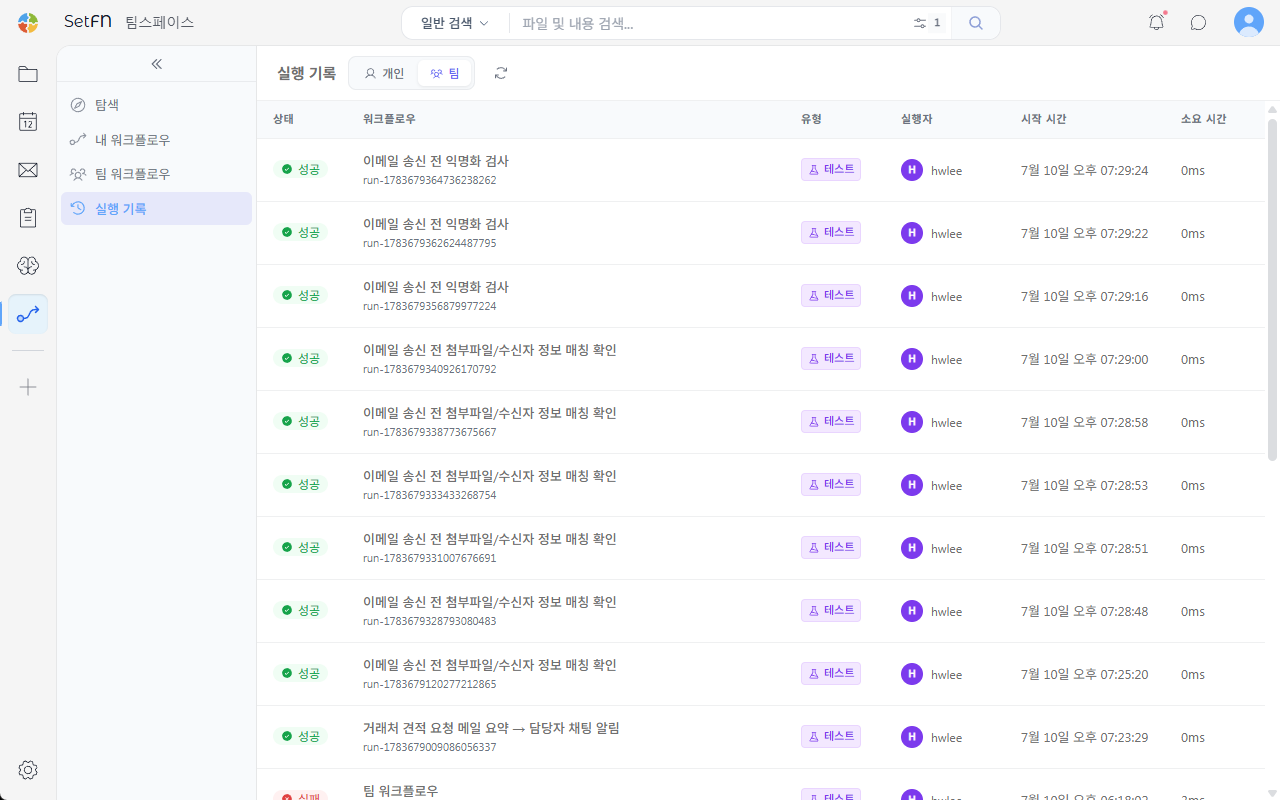
Checking Execution Results
The execution history list shows the status, workflow name, run type, executor, start time, and duration.
| Item | Description |
|---|---|
Status | Indicates whether the run succeeded or failed. |
Workflow | The name of the workflow that was run. |
Type | Indicates whether it was a test run or a regular run. |
Executor | The user who started the run. |
Start Time | The time the workflow was run. |
Duration | The time it took for the run to complete. |
Searching Execution History
When there are many execution records, use search to find the one you want.
- Enter the workflow name or a related keyword in the search bar at the top.
- Switch between the
PersonalandTeamtabs if needed. - Check the run status and time in the search results.
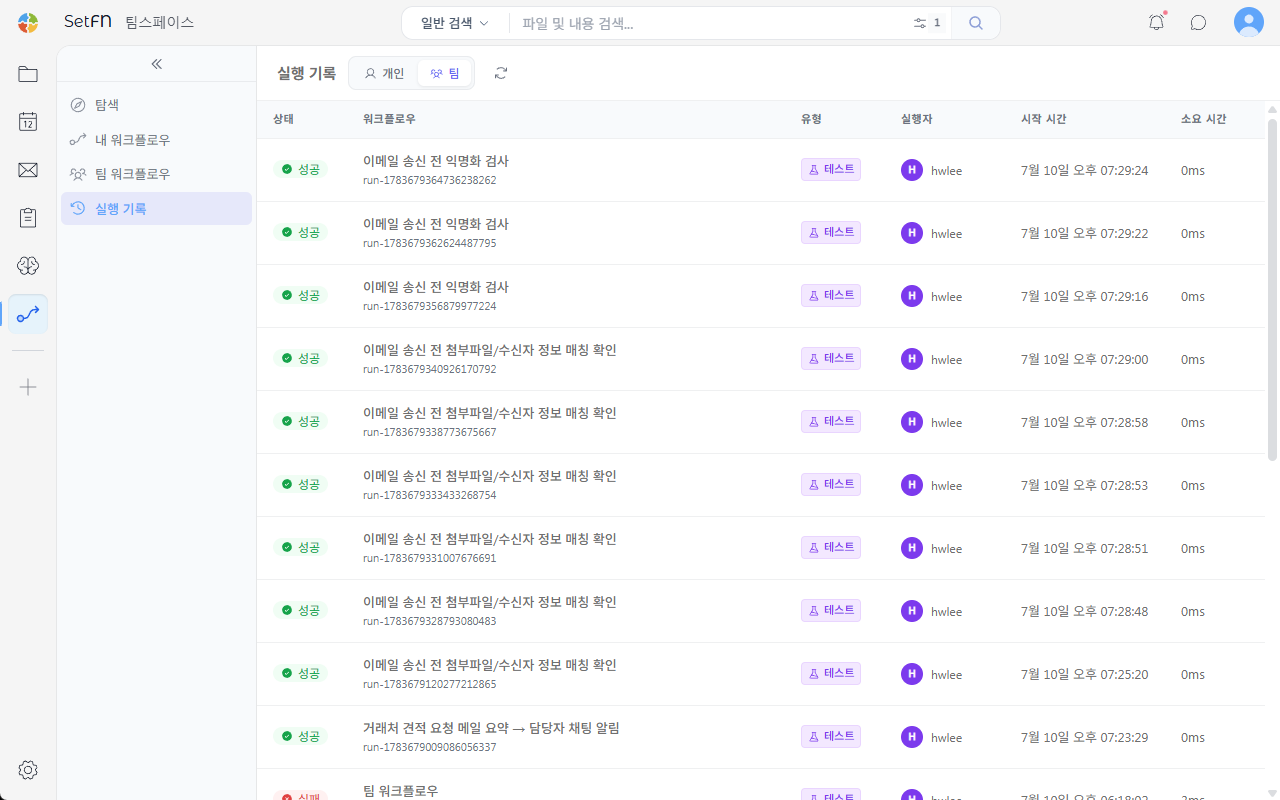
Checking Status
| Status | Description |
|---|---|
Success | The workflow run completed. |
Failed | An error occurred during the run. |
Test | A record from a run started via Test Trigger or Test Step. |
When Reviewing a Failed Run
- Find a record with
Statusset toFailed. - Check the name of the workflow that ran and its start time.
- Check any recently modified triggers, block settings, file paths, or mail conditions.
- If needed, re-test each step in the workflow's editing screen.
For detailed error information, open the failed run and review the status and message shown for the affected step.
Good to Know
- Execution History can show not only actual runs but also test runs.
- What's visible in a team workflow's execution history may vary depending on team permissions.
- A record showing a duration of
0msmay be a test run or a very short-lived execution.