'/%3e%3cpath%20id='cross_2'%20data-name='cross%202'%20class='cls-2'%20d='M20.612,30.43h0a5.361,5.361,0,1,0-10.723,0H0A33.709,33.709,0,0,1,30.569,0V9.75a5.361,5.361,0,1,1,0,10.723V30.43Z'%20transform='translate(67.193%200.007)%20rotate(90)'/%3e%3cpath%20id='cross_3'%20data-name='cross%203'%20class='cls-3'%20d='M20.612,30.43h0a5.361,5.361,0,1,0-10.723,0H0A33.709,33.709,0,0,1,30.569,0V9.75a5.361,5.361,0,1,1,0,10.723V30.43Z'%20transform='translate(67.186%2067.041)%20rotate(180)'/%3e%3cpath%20id='cross_4'%20data-name='cross%204'%20class='cls-4'%20d='M20.6,30.5h0a5.361,5.361,0,1,0-10.723,0H0A33.71,33.71,0,0,1,30.56,0V9.818a5.361,5.361,0,1,1,0,10.723V30.5Z'%20transform='translate(0%2067.041)%20rotate(-90)'/%3e%3c/svg%3e)
Creating a New Workflow
You can create a new workflow to automatically connect file, email, search, AI, and notification tasks.
Creating a New Workflow
- In the left menu, select
My WorkflowsorTeam Workflows. - Select
+ New Workflow. - Enter a
Workflow Name. - Enter a
Descriptionif needed. - Select
Create.
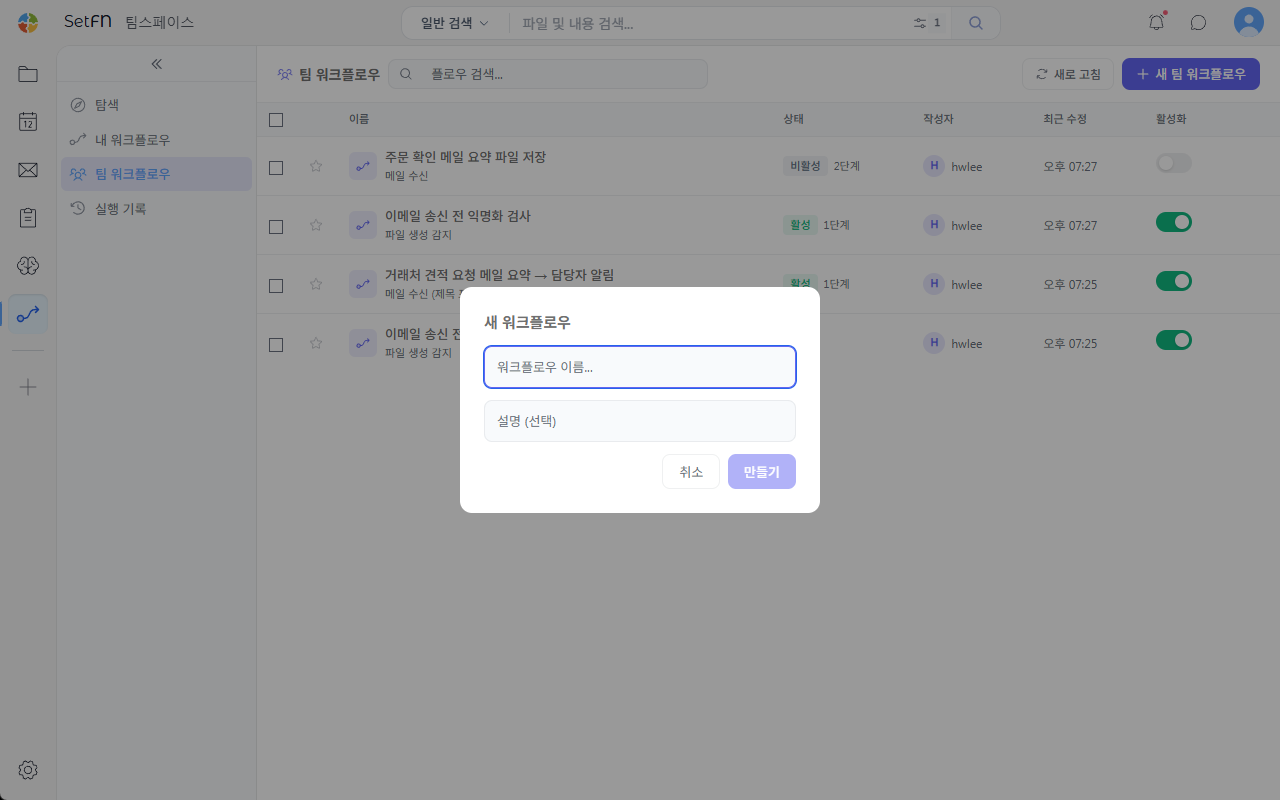
Setting Up a Trigger
A trigger is the condition that starts a workflow. You can set it to run manually, run at a set time, or run when an event occurs, such as a file or mail event.
- On the editing screen, select the
Triggerblock. - Check the
Trigger Typein the settings panel on the right. - Select the trigger type to use.
- Enter the values required for that trigger type.
- Use
Test Triggerto verify the condition.
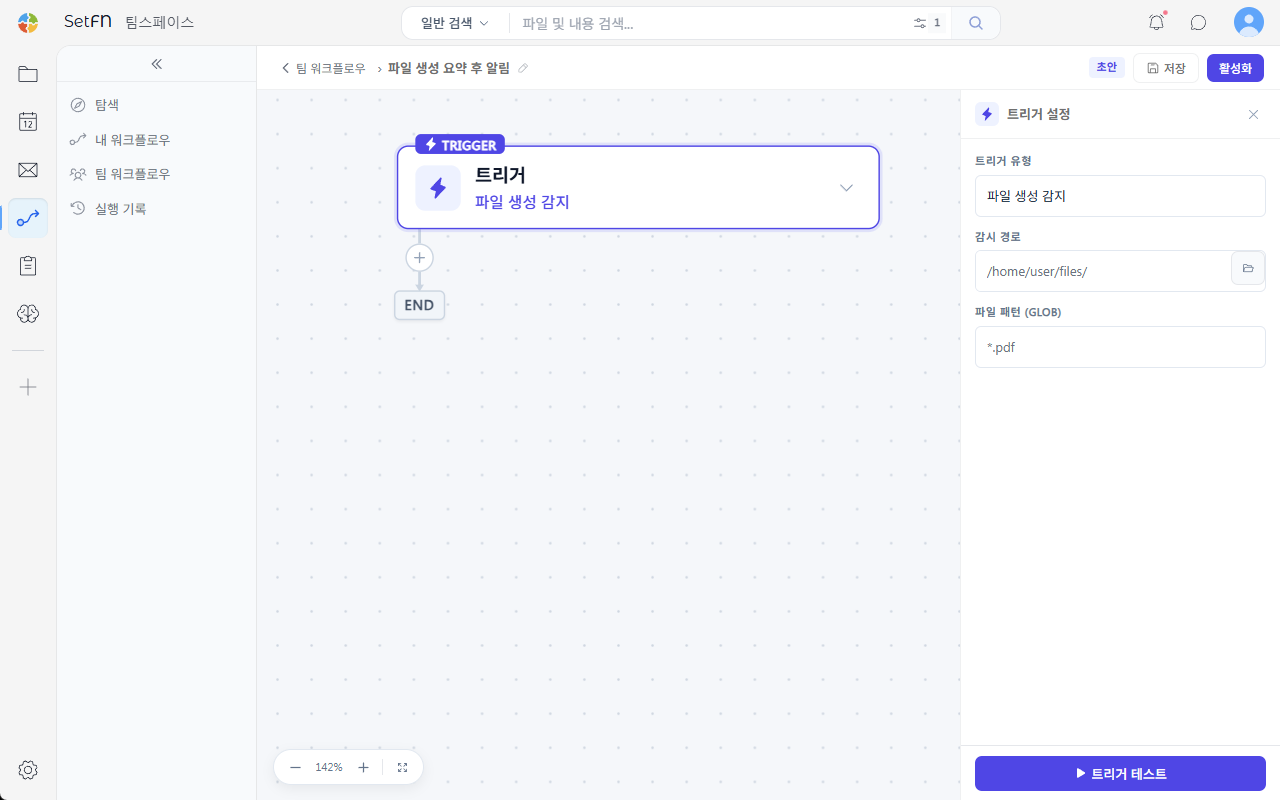
Trigger Types
The trigger types currently available are as follows.
| Trigger | Typical Use |
|---|---|
Manual Execution | The user runs the workflow directly, whenever needed. |
Schedule | Runs the workflow at a set time or recurring interval. |
Webhook | Runs the workflow when an external system sends a request. |
File Creation Detected | Runs when a new file is created in the specified location. |
Modification Detected | Runs when the specified file or location is modified. |
Email Received | Runs when an email matching the conditions arrives. |
When using a file-related trigger, you can also configure a Watch Path and a File Pattern (GLOB).
Adding Blocks
A block is an action that runs after the trigger. It can read a file, summarize with AI, save a result, or notify a user.
- Select the
+button below the trigger. - Use
Search Blocksor the categories to find the block you need. - Select the block.
- Enter the required values in the settings panel on the right.
- Use
Test Stepto verify the block behaves as expected.
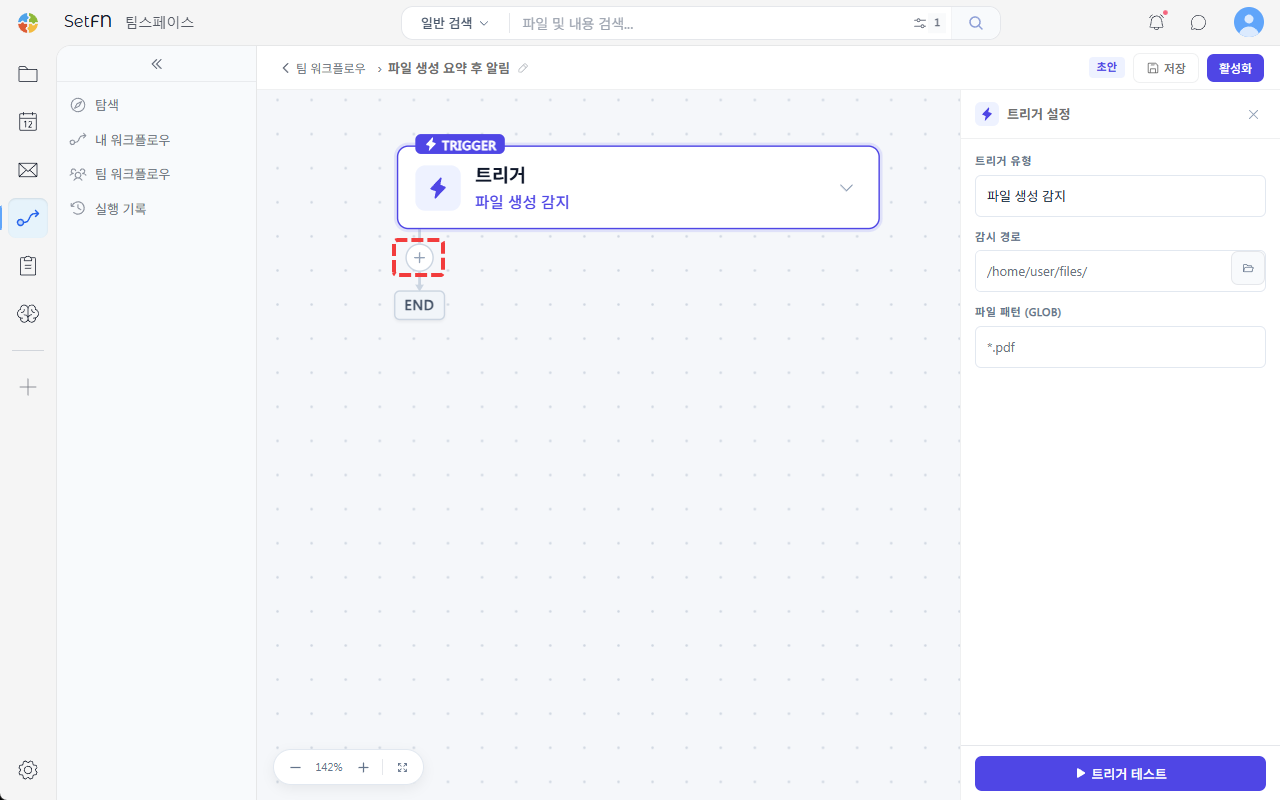
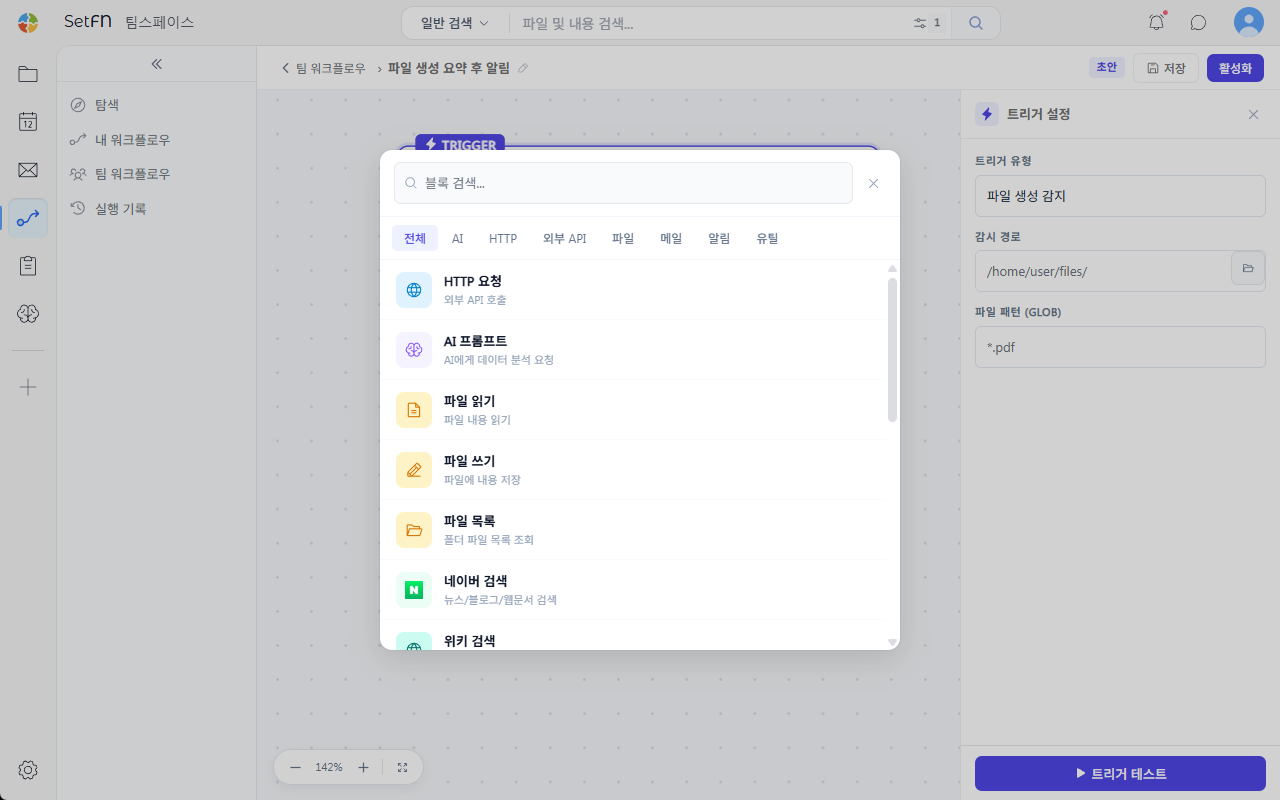
Frequently Used Blocks
You can add many different kinds of blocks to a workflow. The blocks available may continue to grow over time.
| Category | Block | Typical Use |
|---|---|---|
| External requests & collection | HTTP Request | Call an external URL or API. |
| External requests & collection | URL Collection | Fetch a web page's content for use in the next step. |
| AI | AI Prompt | Summarize or classify files, emails, or search results. |
| File | Read File | Read the contents of an existing file and pass it to the next step. |
| File | Write File | Save the workflow's result as a new file. |
| File | List Files | List the files at a specific location. |
| Search | Naver Search | Fetch Naver search results. |
| Search | Wiki Search | Fetch wiki-based search results. |
| Search | KIPRIS Search | Fetch KIPRIS search results such as patents and trademarks. |
Send Mail | Send an email to the specified recipients. | |
Inbox | Fetch the list of emails in the inbox. | |
| Notification | Send Notification | Send a popup-style notification within SetFN. |
| Notification | Send DM | Send a DM to a specific user. |
| Code & logic | Run Code | Execute JavaScript code. |
| Code & logic | Conditional Branch | Split the execution flow based on a condition. |
| Code & logic | Wait | Wait a specified amount of time before the next step. |
Good use cases
- When you want a file upload to trigger an AI summary and have the result saved as a file
- When you want to check the content of an incoming email and notify the person in charge
- When you want to collect a specific URL or search results to draft a report
Example: Notify the Person in Charge After Receiving an Email
You can send a notification so the person in charge sees it right away when a client email or inquiry email arrives.
- Set the trigger to
Email Received. - Use an
AI Promptblock to summarize the email content. - Use a
Conditional Branchblock to determine whether the email is important. - If it's important, run a
Send NotificationorSend DMblock. - Save the summary to a file if needed.
Saving and Activating
- Once configuration is done, select
Save. - Test any step marked
Test Requiredfirst. - If there are no issues, select
Activate. - On the list screen, confirm that the workflow's activation toggle is turned on.
Good to Know
- If
You have unsaved changesis displayed, there are unsaved changes remaining. - File writes, sending mail, and sending DMs can affect real data or users, so activate only after testing.
- Team workflows can affect team users.
- Block names and availability may change with updates.