'/%3e%3cpath%20id='cross_2'%20data-name='cross%202'%20class='cls-2'%20d='M20.612,30.43h0a5.361,5.361,0,1,0-10.723,0H0A33.709,33.709,0,0,1,30.569,0V9.75a5.361,5.361,0,1,1,0,10.723V30.43Z'%20transform='translate(67.193%200.007)%20rotate(90)'/%3e%3cpath%20id='cross_3'%20data-name='cross%203'%20class='cls-3'%20d='M20.612,30.43h0a5.361,5.361,0,1,0-10.723,0H0A33.709,33.709,0,0,1,30.569,0V9.75a5.361,5.361,0,1,1,0,10.723V30.43Z'%20transform='translate(67.186%2067.041)%20rotate(180)'/%3e%3cpath%20id='cross_4'%20data-name='cross%204'%20class='cls-4'%20d='M20.6,30.5h0a5.361,5.361,0,1,0-10.723,0H0A33.71,33.71,0,0,1,30.56,0V9.818a5.361,5.361,0,1,1,0,10.723V30.5Z'%20transform='translate(0%2067.041)%20rotate(-90)'/%3e%3c/svg%3e)
External search & evidence
In External search & evidence, you set up web search, which adds search results from the public web as evidence to internal document search. It is an optional feature, and you must connect a search provider to use it.
Before you begin
- Required permission: Workspace administrator
- Required license: Team or higher to save settings and to change providers and servers. On Free, you can only view the settings and run search tests.
- Search terms are sent to external providers. AI mode can use a question as the search term, so instruct users not to enter confidential content.
Open External search & evidence
- Open the administrator page.
- Select
Knowledge Servicesin the left menu. - Select
External search & evidence.
The page consists of the Basics, Search providers, Usage & security, and External MCP tabs. After you change a value, you must select Save for it to be applied.
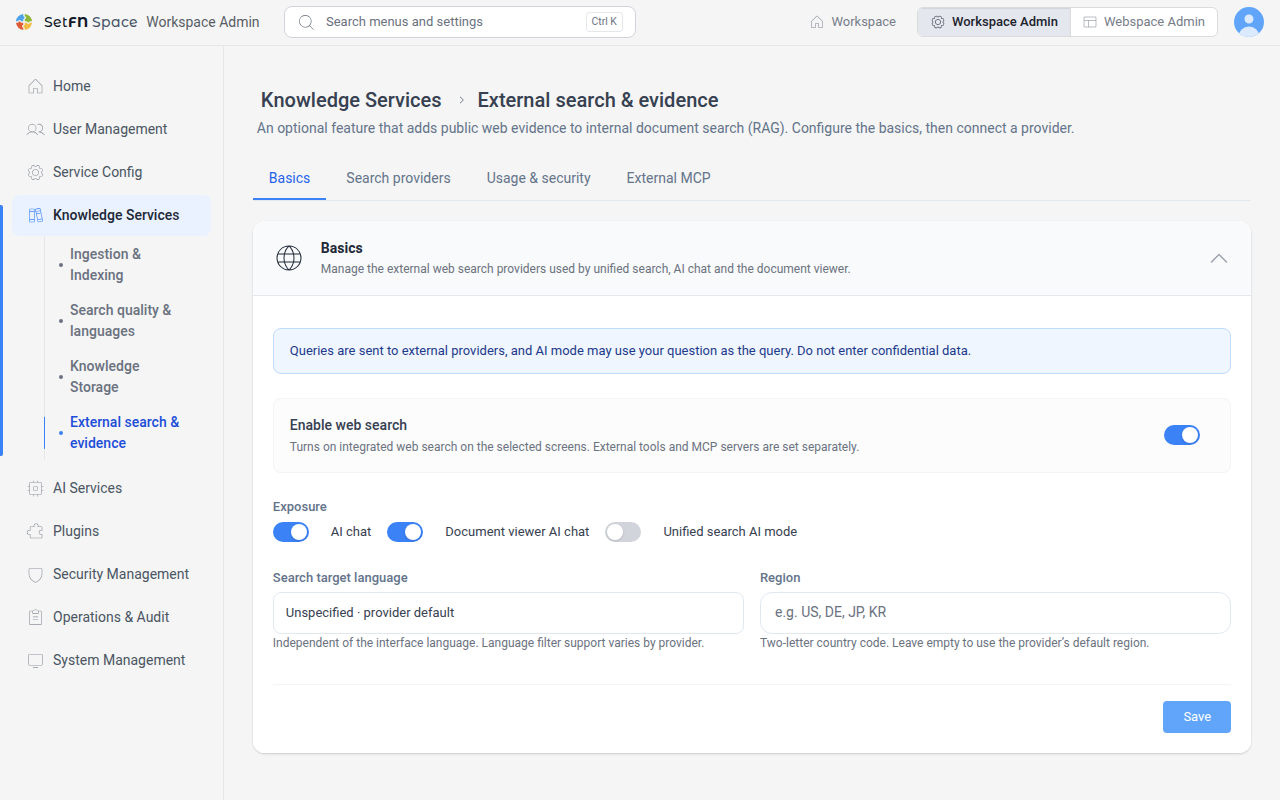
Turn on web search
On the Basics tab, turn on web search and choose the screens where it is used.
| Item | Description |
|---|---|
Enable web search | Turns on web search on the selected screens. |
Exposure | The screens where web search is used. Select from AI chat, Document viewer AI chat, and Unified search AI mode. |
Search target language | The language of the search results. If not specified, the provider's default is used. |
Region | A two-letter country code. If left empty, the provider's default region is used. |
Connect a search provider
On the Search providers tab, connect the providers to use and set the search order.
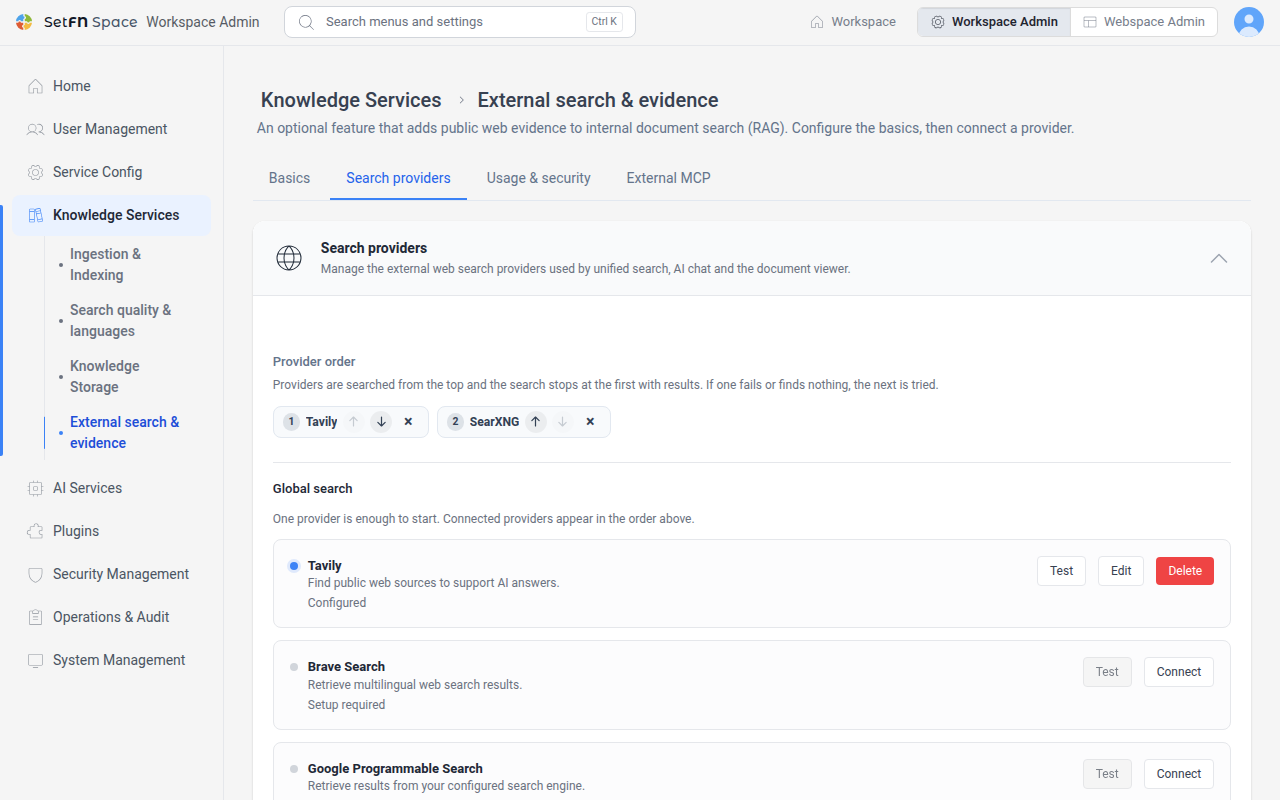
- Select
Connectfor the provider you want to connect. - Enter the key issued by the provider and select
Save. - In
Provider order, check the order used for search. - Check the connection of each provider with
Test, or enter a search term and selectTest the full order.
Search tries the providers in Provider order from the top, one after another, and stops when results are found. If a provider fails or returns no results, search moves on to the next provider.
Set usage and security
On the Usage & security tab, set the amount of search results and the call limits.
| Item | Description |
|---|---|
Read top result pages | Reads the top 2 result pages and reinforces the evidence with sentences related to the question. When turned off, only the provider's short summary is used. |
Max results (1-20) | The number of results fetched in one search. |
Daily external search limit (0 = no limit) | The daily limit for web search and external MCP calls combined. |
Per-user hourly limit | The number of external searches that one user can run in 1 hour. |
Allowed domains, Blocked domains | The domains to include in or exclude from search results. Enter one per line. |
Connect an external MCP server
On the External MCP tab, connect external MCP servers. If you have already connected a search provider, you do not need to add one.
- Select
Add server. - Enter
ID,Name, andURL. For a server that requires authentication, enterAuth header nameand saveSecret. - Check the server and the tools it provides with
Test connection. - Select
Save.
After you save a server that has a search tool, you can add it to the provider order on the Search providers tab.
Good to Know
- Naver is used only for Korean search. If no search language is specified, it is used when the search term contains Korean characters.
- A single search can try multiple providers, so the daily limit differs from the provider's actual billing cap.