'/%3e%3cpath%20id='cross_2'%20data-name='cross%202'%20class='cls-2'%20d='M20.612,30.43h0a5.361,5.361,0,1,0-10.723,0H0A33.709,33.709,0,0,1,30.569,0V9.75a5.361,5.361,0,1,1,0,10.723V30.43Z'%20transform='translate(67.193%200.007)%20rotate(90)'/%3e%3cpath%20id='cross_3'%20data-name='cross%203'%20class='cls-3'%20d='M20.612,30.43h0a5.361,5.361,0,1,0-10.723,0H0A33.709,33.709,0,0,1,30.569,0V9.75a5.361,5.361,0,1,1,0,10.723V30.43Z'%20transform='translate(67.186%2067.041)%20rotate(180)'/%3e%3cpath%20id='cross_4'%20data-name='cross%204'%20class='cls-4'%20d='M20.6,30.5h0a5.361,5.361,0,1,0-10.723,0H0A33.71,33.71,0,0,1,30.56,0V9.818a5.361,5.361,0,1,1,0,10.723V30.5Z'%20transform='translate(0%2067.041)%20rotate(-90)'/%3e%3c/svg%3e)
Search Management
Manage the settings that improve the accuracy of regular search and AI search in one place. You can configure morphological analysis, the synonym dictionary, and AI request classification. You can also review typo candidates and register approved words in the synonym dictionary.
To use AI request classification, set up an AI runtime first in AI Model Settings.
Before you begin
- Required role: Workspace administrator
- Morphology and synonym changes affect both standard search and AI search.
Open Search Management
- Open the administrator console.
- Select
Knowledge Servicesin the left menu. - Select
Search Management.
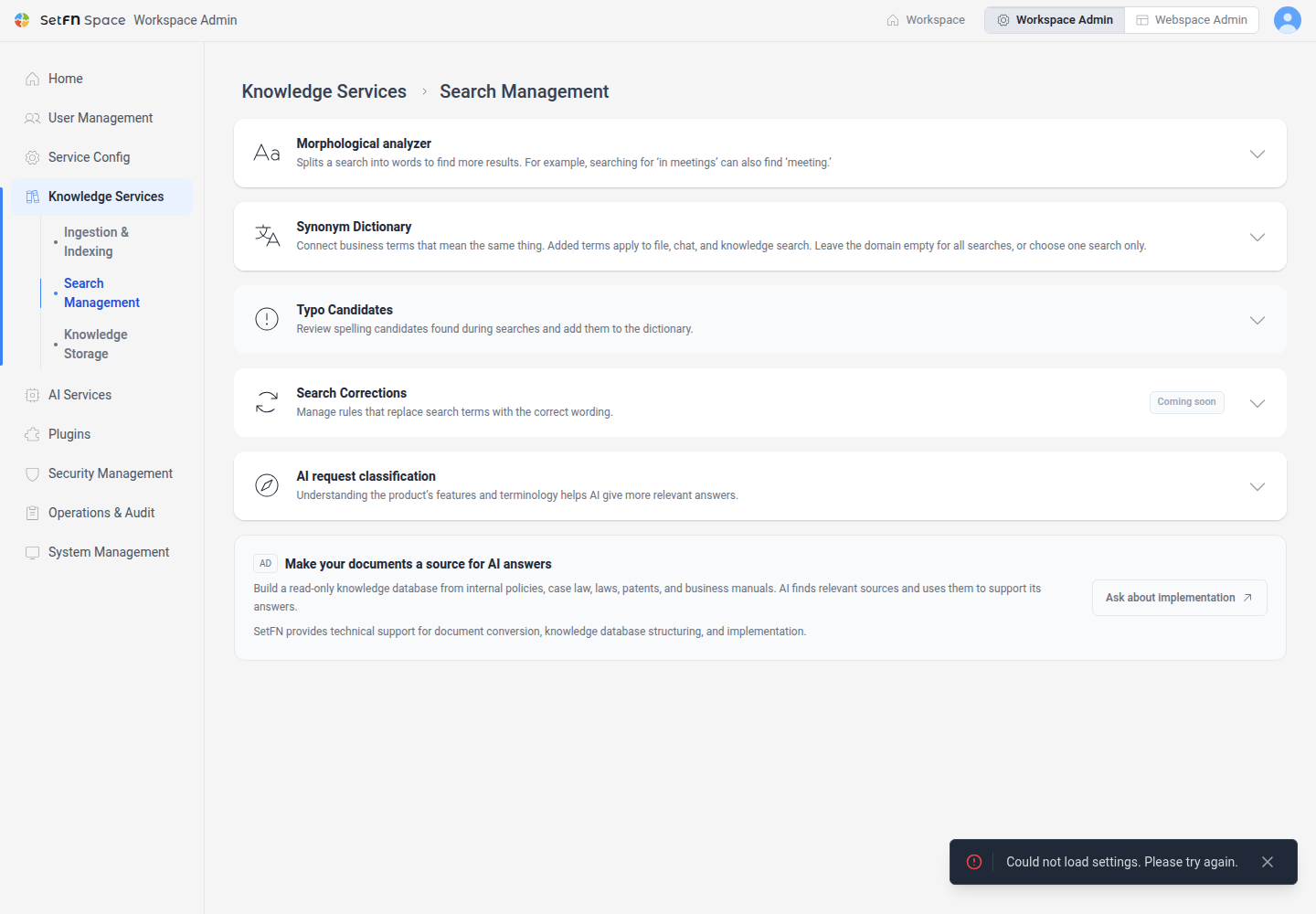
Morphological analyzer
Check the active search mode and analyzer, select a mode and save it. Schedule a server restart if prompted. The saved mode can differ from the active mode; verify the active mode after restarting.
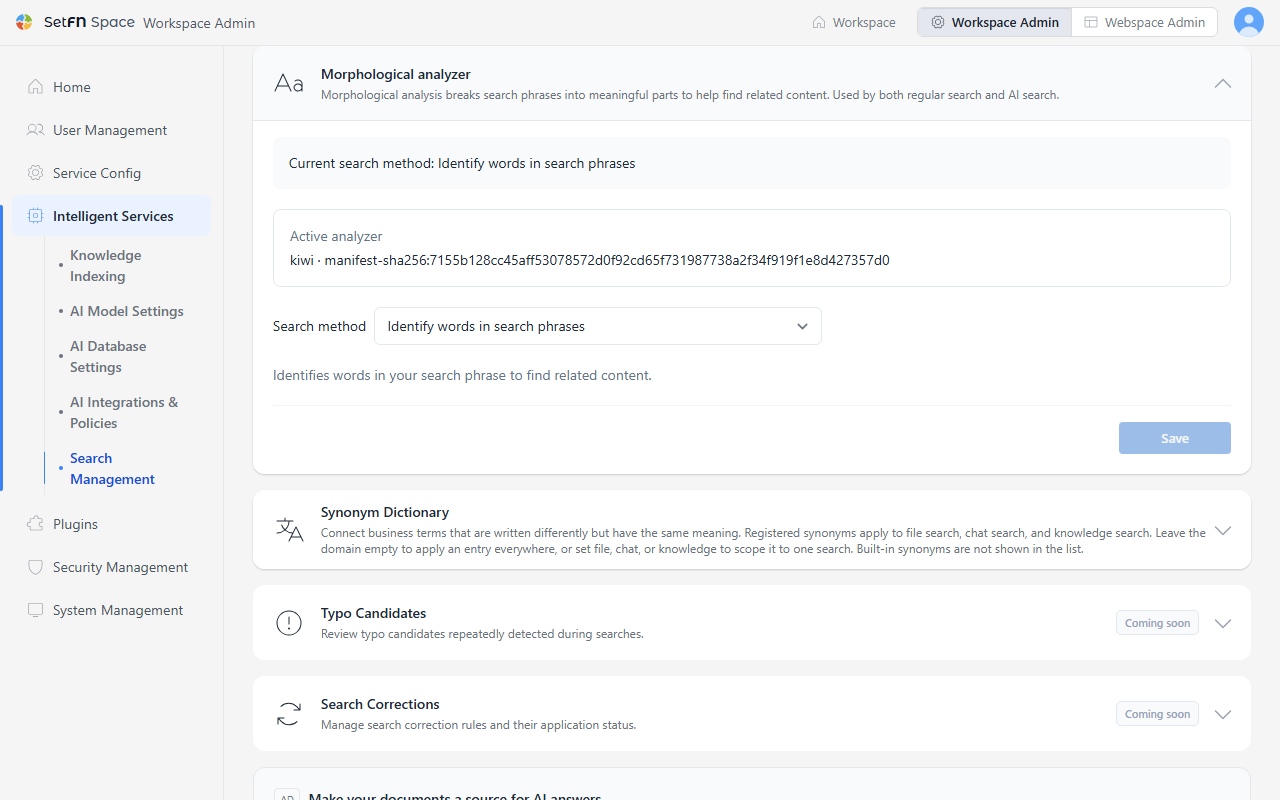
| Mode | Behavior |
|---|---|
Basic search | Searches with the entered query. |
Identify words in search phrases | Splits query words for searching. |
Assist selected Korean AI searches when needed | Recommended. Analyzes Korean count relationships or long unspaced queries only when evidence is insufficient. Exact ID and comparison searches are excluded. |
Use document word indexes only when evidence is insufficient | Prepares document word indexes and retries with analyzed queries and those indexes only when authorized source evidence is insufficient. |
Identify words in search phrases and documents | Processes both query and document words. |
Selecting the recommended mode changes only the selection. Save and restart the server to apply it. Existing settings are not changed automatically, and the analyzer must be available on the server.
Modes using document word indexes require existing documents to be processed again in Ingestion & Indexing. Document morphology statistics are cumulative since server startup, rather than a completion percentage for all documents.
Synonym Dictionary
Connect business terms that are written differently but have the same meaning. Registered synonyms are applied together to regular (file) search, chat search, comment search, and knowledge base search. Built-in synonyms are not shown in the list.
Example
Here's an example with Naver, Instagram, and KakaoTalk registered as canonical terms.
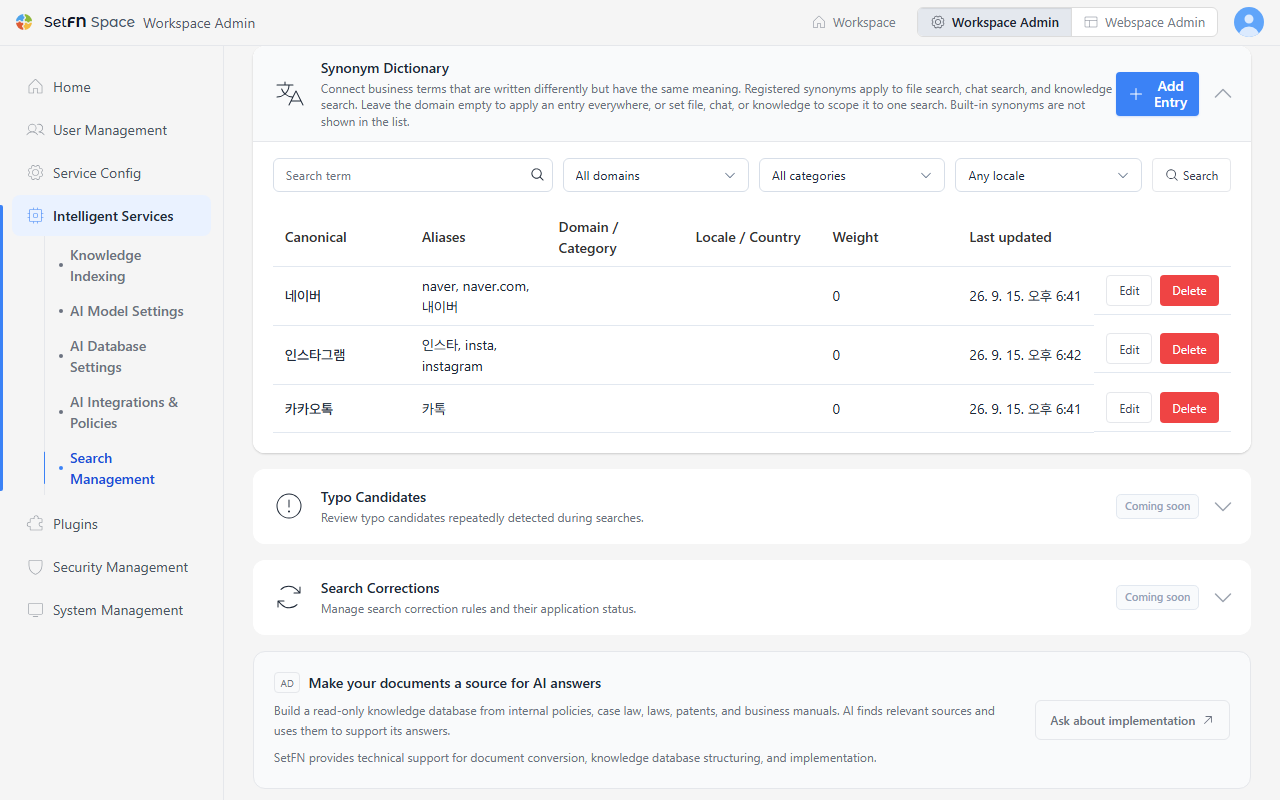
Registering 네이버 as the canonical term with naver, naver.com, and 내이버 as aliases means a search for naver also finds documents and comments that mention 네이버. The same goes for 카카오톡: registering the everyday abbreviation 카톡 as an alias means search results aren't missed just because the spelling differs.
You can search registered synonyms by Search term, Domain, and Category.
Adding a Synonym Entry
- Select
Add Entry. - Enter the standard term in
Canonical term. - In
Aliases, enter expressions that can replace the canonical term without changing its meaning, separated by commas. - If needed, enter
Weight(0-1000, higher values rank first in autocomplete suggestions),Domain,Category,Locale,Country, andDescription. - Select
Save.
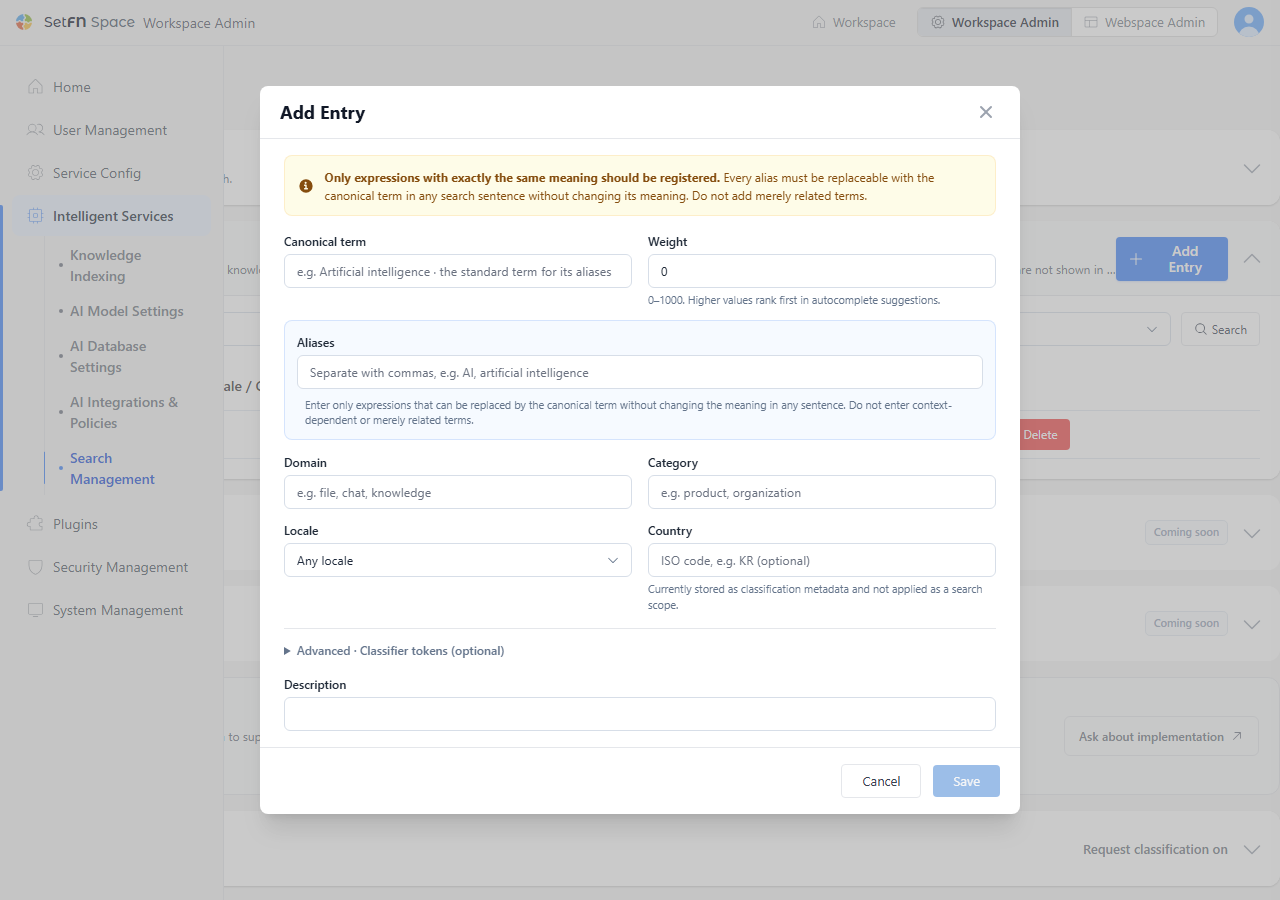
Country is currently stored only as classification metadata and is not applied to the search scope.
Use the language filter to narrow dictionary entries. Advanced tokens are used for classification and suggestions only; they are not expanded as search synonyms.
AI request classification
Understanding the product's features and terminology helps AI give more relevant answers.
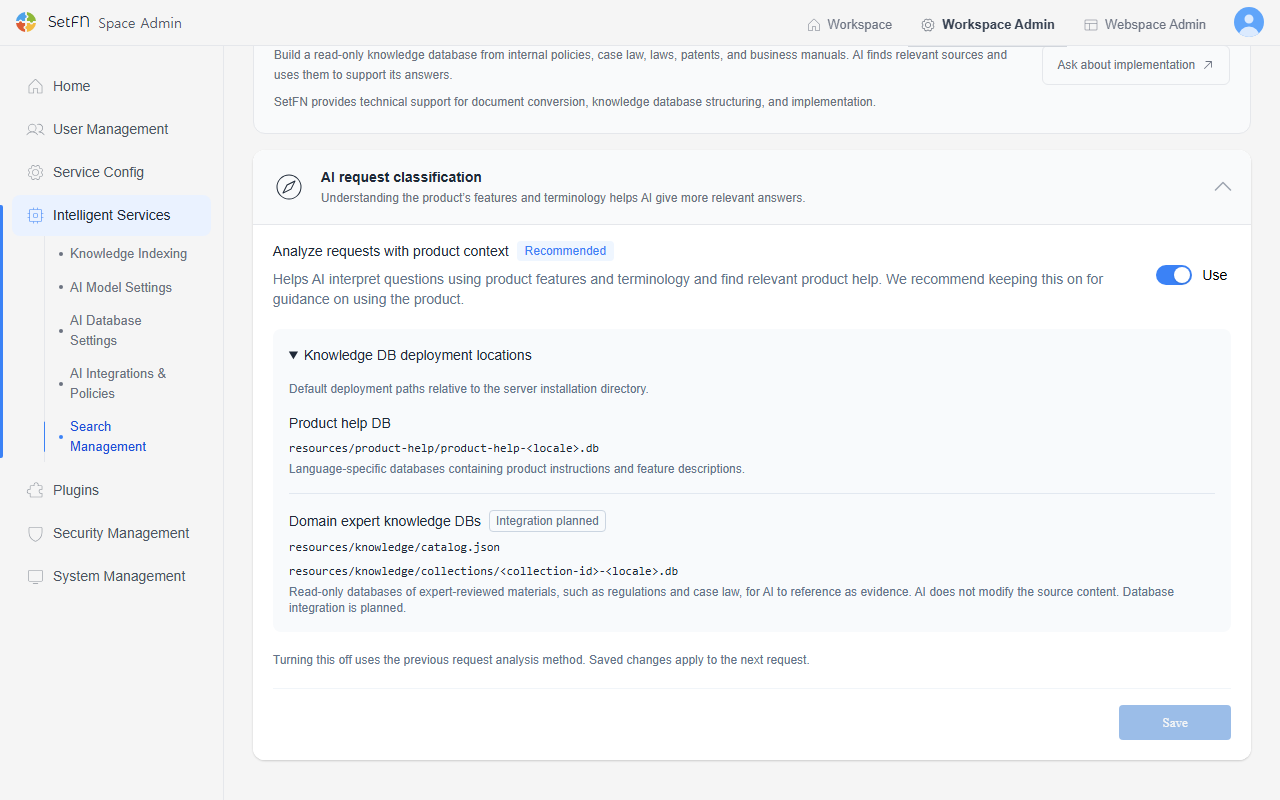
Turning on Analyze requests with product context helps AI interpret questions using product features and terminology and find relevant product help. Open Knowledge DB deployment locations to check the DB paths AI references.
| Database | Path | Description |
|---|---|---|
| Product help DB | resources/product-help/product-help-<locale>.db | Language-specific databases containing product instructions and feature descriptions. |
| Domain expert knowledge DBs (Integration planned) | resources/knowledge/catalog.json, resources/knowledge/collections/<collection-id>-<locale>.db | Read-only databases of expert-reviewed materials, such as regulations and case law, for AI to reference as evidence. AI does not modify the source content. |
Select Save when you finish.
Review typo candidates
- Expand the typo candidates card.
- Check the observed and suggested words, source, scope and observation count.
- Register a candidate in the dictionary and confirm only when the words have the same meaning.
- Reject incorrect candidates and confirm.
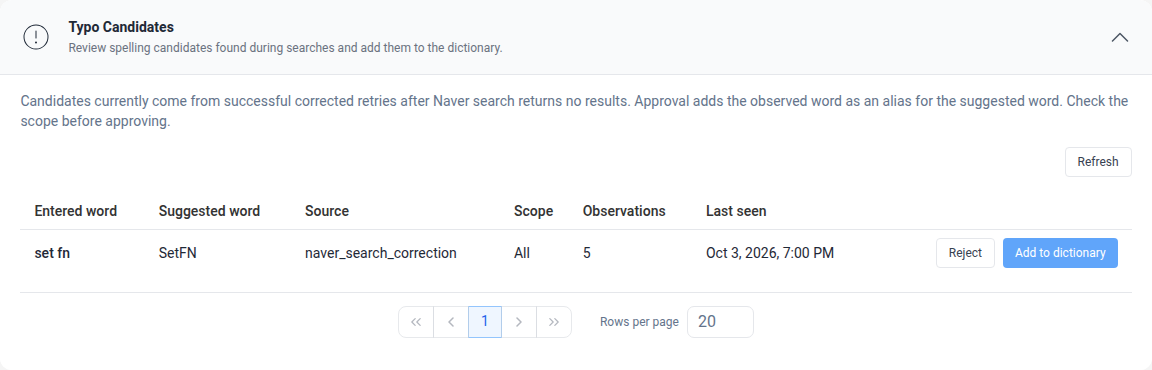
Candidates currently come from successful corrected Naver searches after the original query returned no results. Approval adds the observed word as a synonym of the suggested word and refreshes the dictionary. Candidates are not approved automatically; review their meaning and scope first.
Features in preparation
The separate search correction rules card is still in preparation. Typo candidate review and registration in the dictionary are available.