'/%3e%3cpath%20id='cross_2'%20data-name='cross%202'%20class='cls-2'%20d='M20.612,30.43h0a5.361,5.361,0,1,0-10.723,0H0A33.709,33.709,0,0,1,30.569,0V9.75a5.361,5.361,0,1,1,0,10.723V30.43Z'%20transform='translate(67.193%200.007)%20rotate(90)'/%3e%3cpath%20id='cross_3'%20data-name='cross%203'%20class='cls-3'%20d='M20.612,30.43h0a5.361,5.361,0,1,0-10.723,0H0A33.709,33.709,0,0,1,30.569,0V9.75a5.361,5.361,0,1,1,0,10.723V30.43Z'%20transform='translate(67.186%2067.041)%20rotate(180)'/%3e%3cpath%20id='cross_4'%20data-name='cross%204'%20class='cls-4'%20d='M20.6,30.5h0a5.361,5.361,0,1,0-10.723,0H0A33.71,33.71,0,0,1,30.56,0V9.818a5.361,5.361,0,1,1,0,10.723V30.5Z'%20transform='translate(0%2067.041)%20rotate(-90)'/%3e%3c/svg%3e)
License Management
In the License Management section of the admin home, you can check the current license status and link your SetFN account to select the license you own. For the procedure to register a license key after the initial installation, see License Activation.
Linking Your SetFN Account
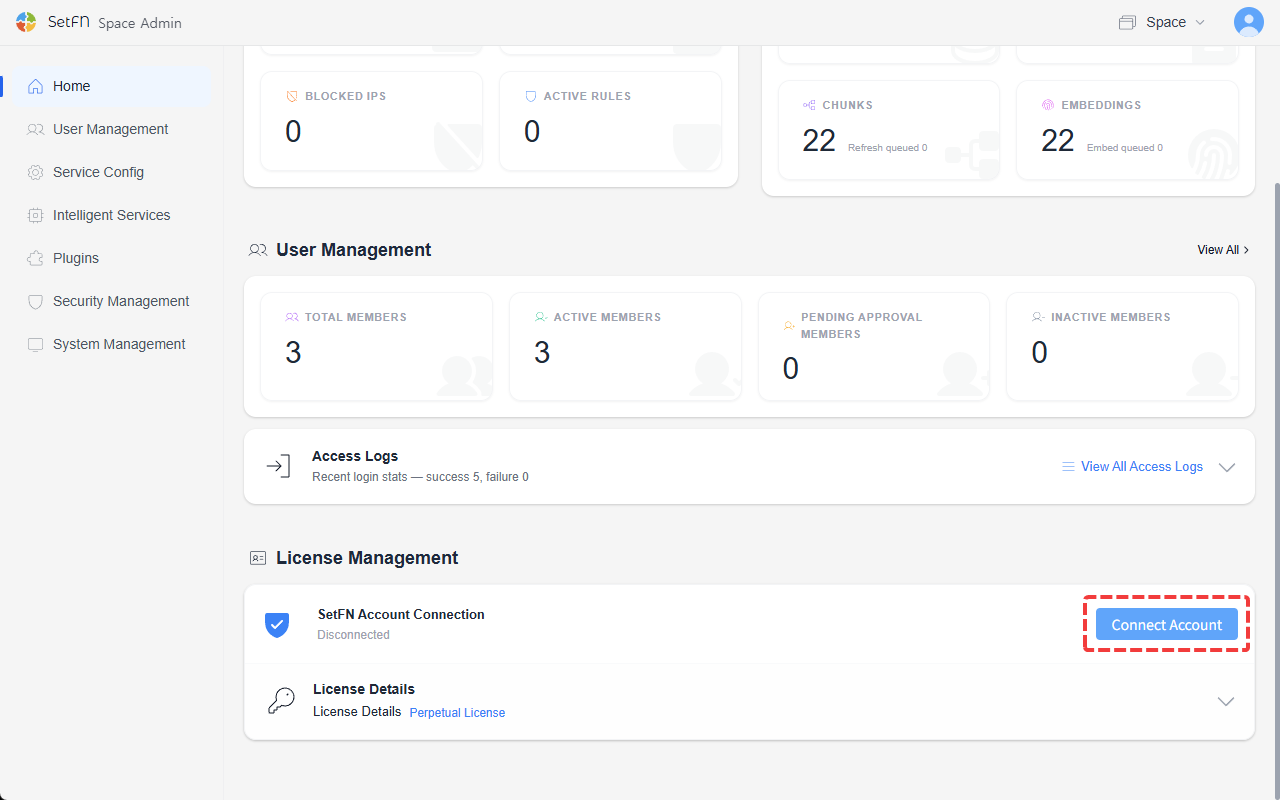
- In the License Management section of the admin home, click the
Link Accountbutton.
- In the popup window, enter your SetFN account email and password, then click
Log In.
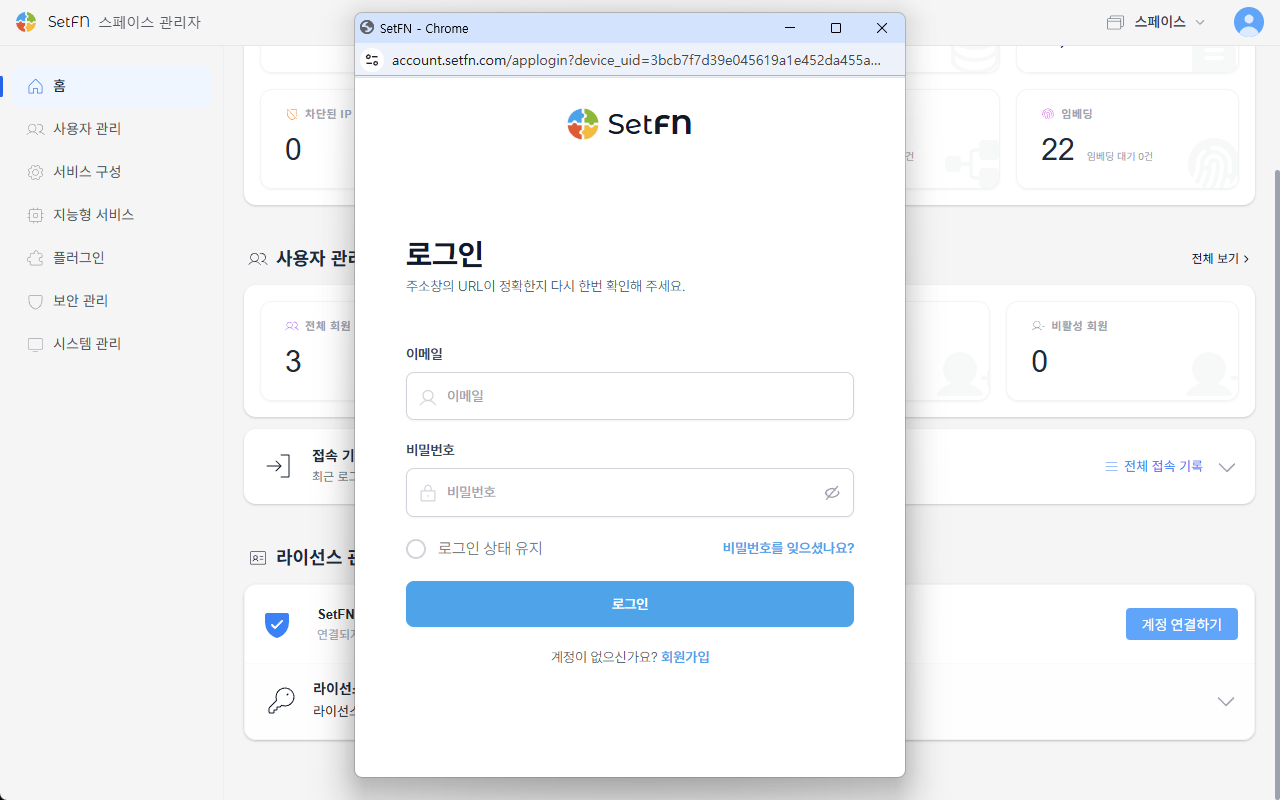
Your SetFN account and your admin account are separate.
- SetFN account: The account you used to obtain or purchase a license at account.setfn.com.
- Admin account: The local admin account created after installing SetFN SpaceBuilder.
In this step, you log in with your SetFN account.
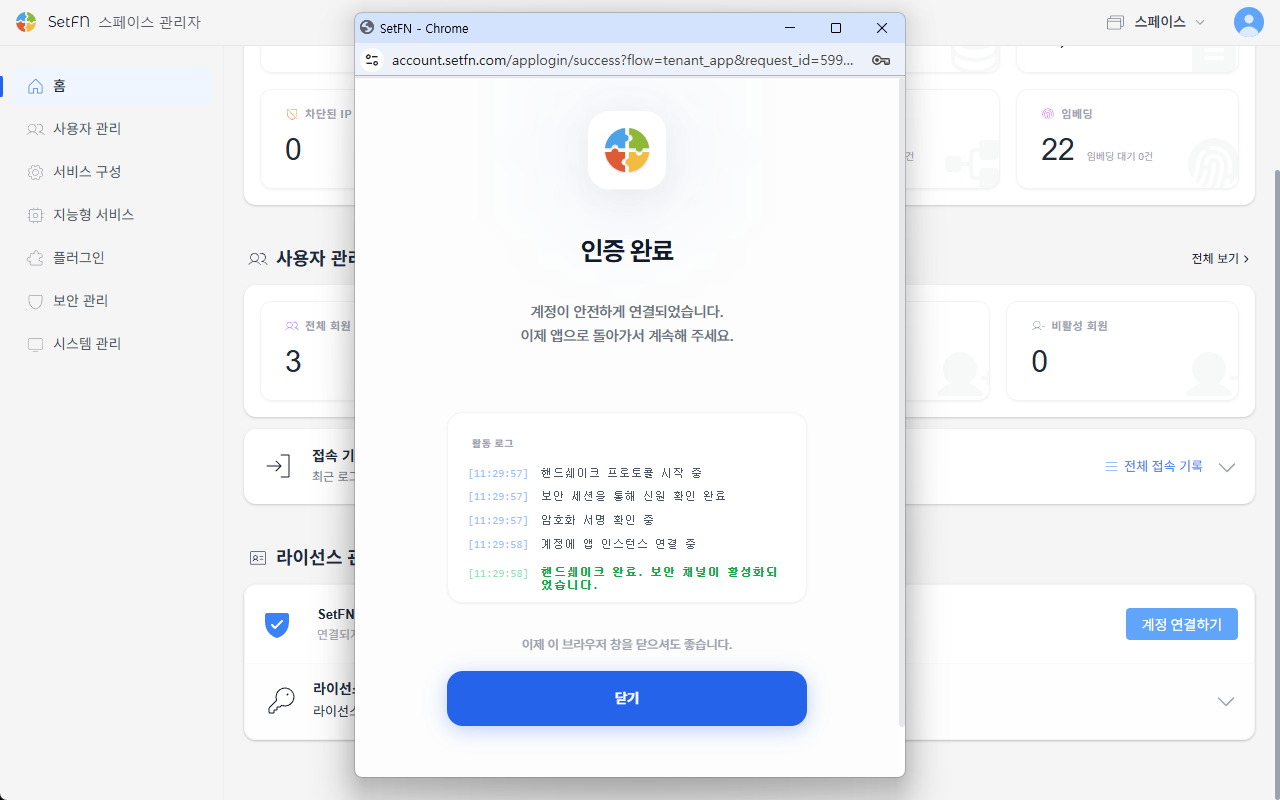
- Once login authentication is complete, close the popup.
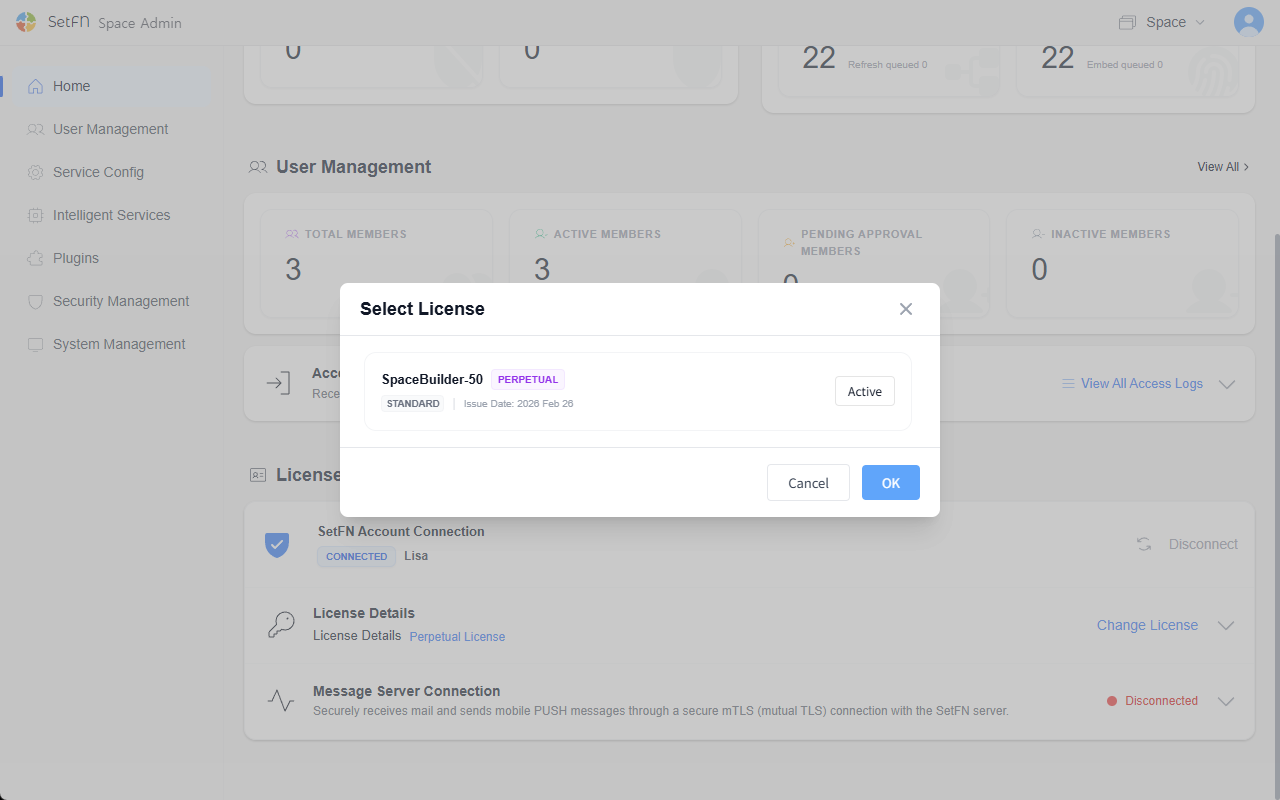
- A list of licenses you own is displayed. Select the license to apply, then click ①
Select License→ ②Confirm.
Items You Can Manage During Operation
Once a license is linked, the admin home shows the following information.
| Item | Description |
|---|---|
| Linked SetFN account | The account used to obtain or purchase the license. |
| Applied license | The license currently applied to this Space. |
| Plan or edition | Check the current scope in use, such as Community or Enterprise. |
| Expiration date | Check when the license needs to be renewed. |
| User limit | Check the number of users allowed under the current license. |
| Message server connection | The connection status for features that require an mTLS-secured connection, such as the email plugin and mobile push notifications. |
- Even when using the Community edition for free, a license must still be issued and registered. Free use may operate through a license issued via a $0 subscription payment on account.setfn.com.
Checking License Status
Once the connection is complete, the License Management section shows the following information.
| Item | Description |
|---|---|
| SetFN account connection | Displays the linked account information. |
| License details | Check details such as the license type and issue date. |
| Message server connection | Required only when using features that need an mTLS-secured connection, such as the email plugin and mobile push notifications. Other features work normally even without this connection. |