'/%3e%3cpath%20id='cross_2'%20data-name='cross%202'%20class='cls-2'%20d='M20.612,30.43h0a5.361,5.361,0,1,0-10.723,0H0A33.709,33.709,0,0,1,30.569,0V9.75a5.361,5.361,0,1,1,0,10.723V30.43Z'%20transform='translate(67.193%200.007)%20rotate(90)'/%3e%3cpath%20id='cross_3'%20data-name='cross%203'%20class='cls-3'%20d='M20.612,30.43h0a5.361,5.361,0,1,0-10.723,0H0A33.709,33.709,0,0,1,30.569,0V9.75a5.361,5.361,0,1,1,0,10.723V30.43Z'%20transform='translate(67.186%2067.041)%20rotate(180)'/%3e%3cpath%20id='cross_4'%20data-name='cross%204'%20class='cls-4'%20d='M20.6,30.5h0a5.361,5.361,0,1,0-10.723,0H0A33.71,33.71,0,0,1,30.56,0V9.818a5.361,5.361,0,1,1,0,10.723V30.5Z'%20transform='translate(0%2067.041)%20rotate(-90)'/%3e%3c/svg%3e)
Builder
The Builder lets you create and edit CRF forms and visit/schedule menus directly. Its biggest advantage is that editing and deployment are easy — you can fix a form right on screen without touching code, create a new version, and roll it out to the site whenever you choose.
The Builder consists of three tabs at the top (Getting Started Guide / Menu & Schedule Configuration / CRF Form Configuration).
CRF Form Configuration
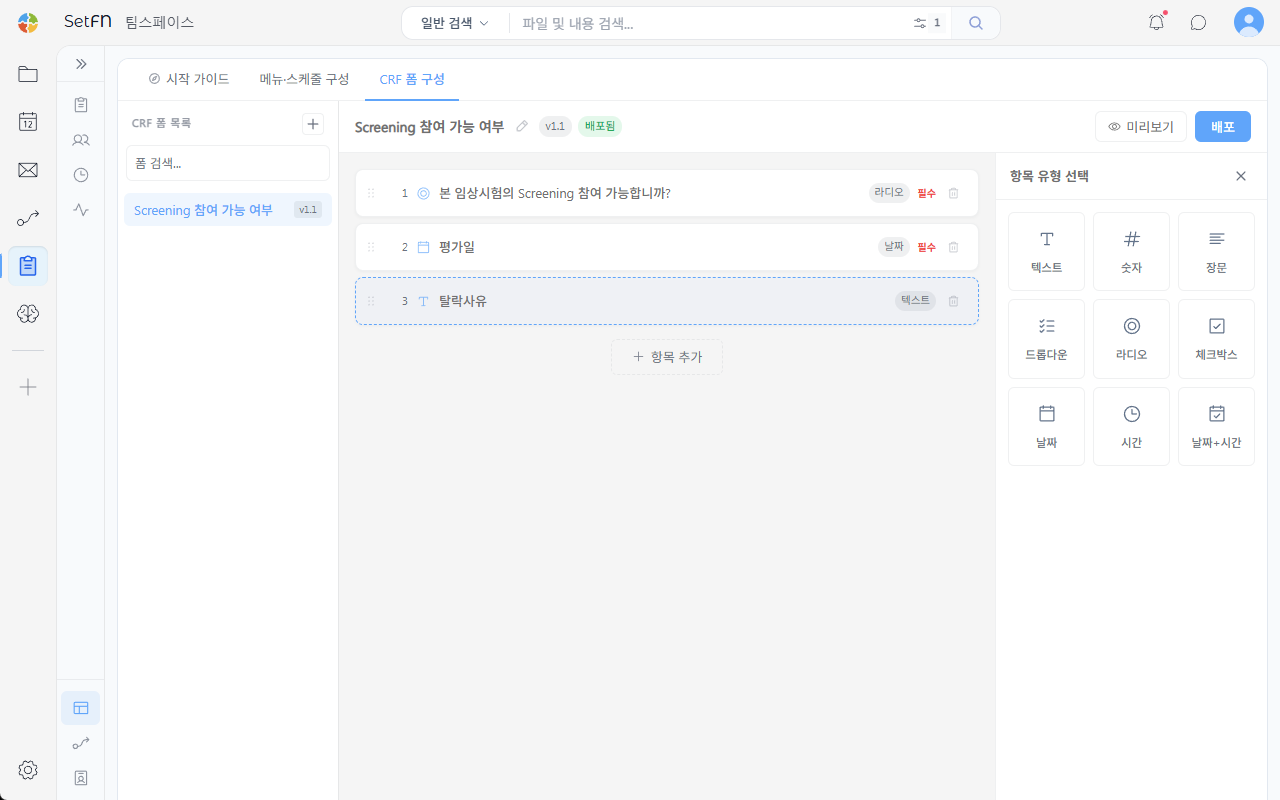
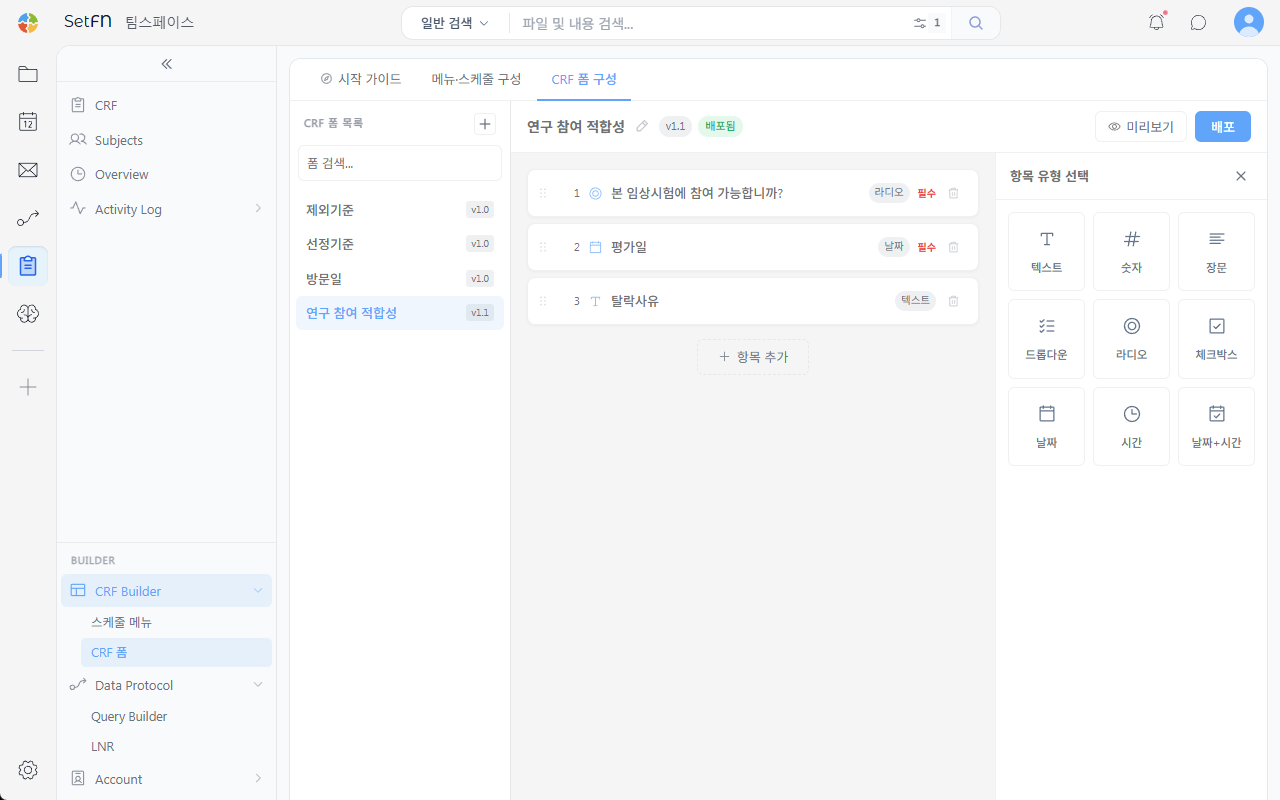
Select a form on the left, then drag items in from the Select Item Type palette on the right (text, number, long text, dropdown, radio, checkbox, date, time, date+time) to build it out. Reorder items by dragging.
Version Management
Each time you edit a form, its version increases (e.g., v1.0 → v1.1). Check the actual screen with Preview, then click the Deploy button to have that version reflected on the live data-entry screen. Until you deploy, the existing version continues to be used, so you can edit and test the form safely.
Menu & Schedule Configuration
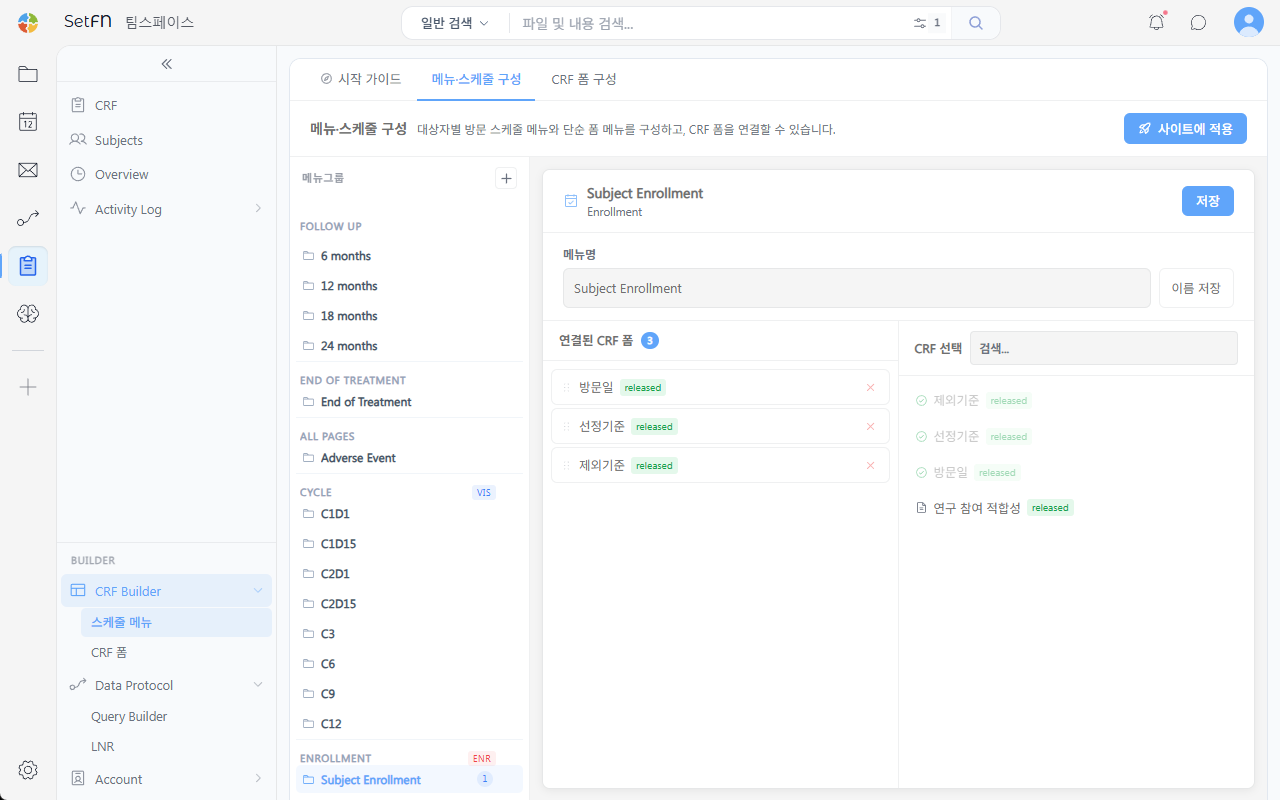
Create visit-schedule menus per subject (Follow up, End of Treatment, Cycle, etc.) and link CRF forms to each menu. Select the item you want in the menu-group tree, then search for and add the forms to link in Select CRF on the right.
Applying to a Site
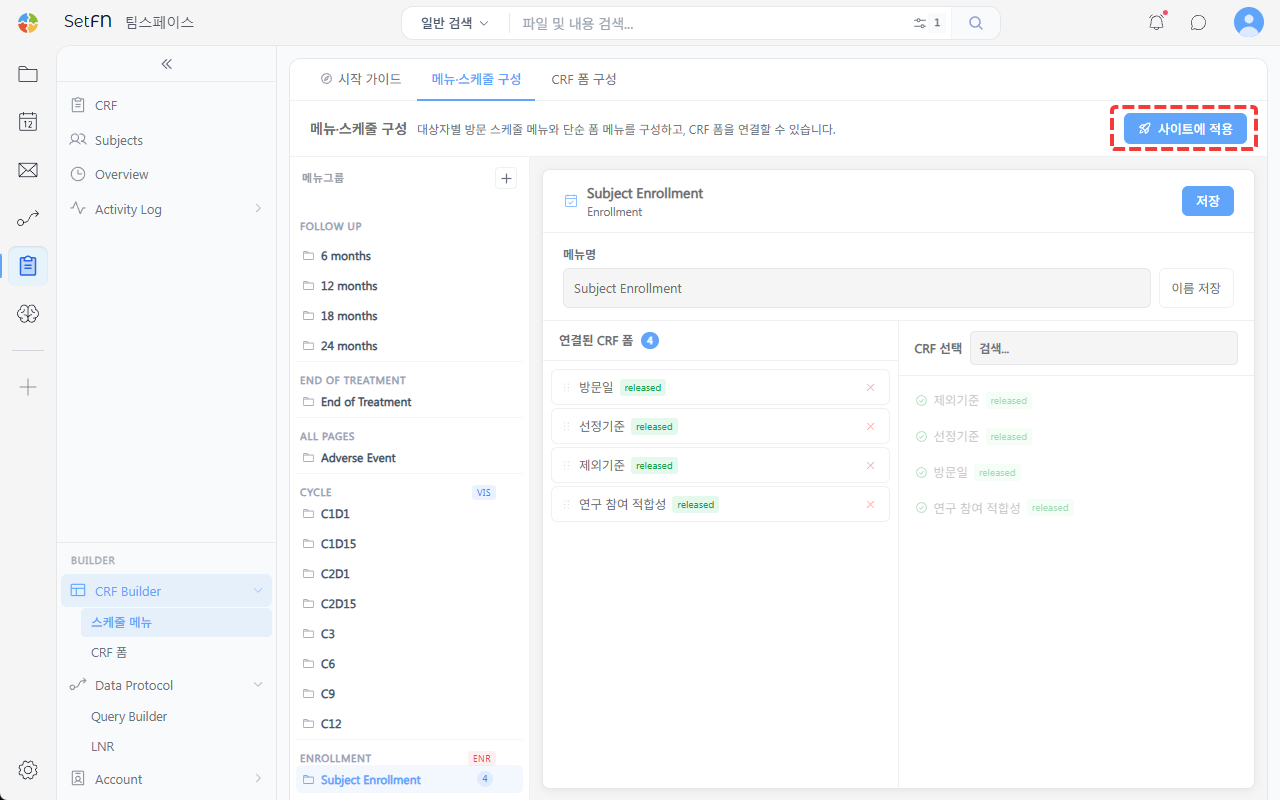
To use the configured menus, schedule, and CRF forms at an actual research site, click the Apply to Site button. No matter how many changes you make in the Builder, they are only reflected on the live data-entry screen once you click this button, giving you direct control over the deployment timing.
Good to Know
- Making major structural changes to a form that already has data entered may cause it to no longer match the existing data. Edit with care.
- Changes are not visible to actual users until you click
Apply to Site.